

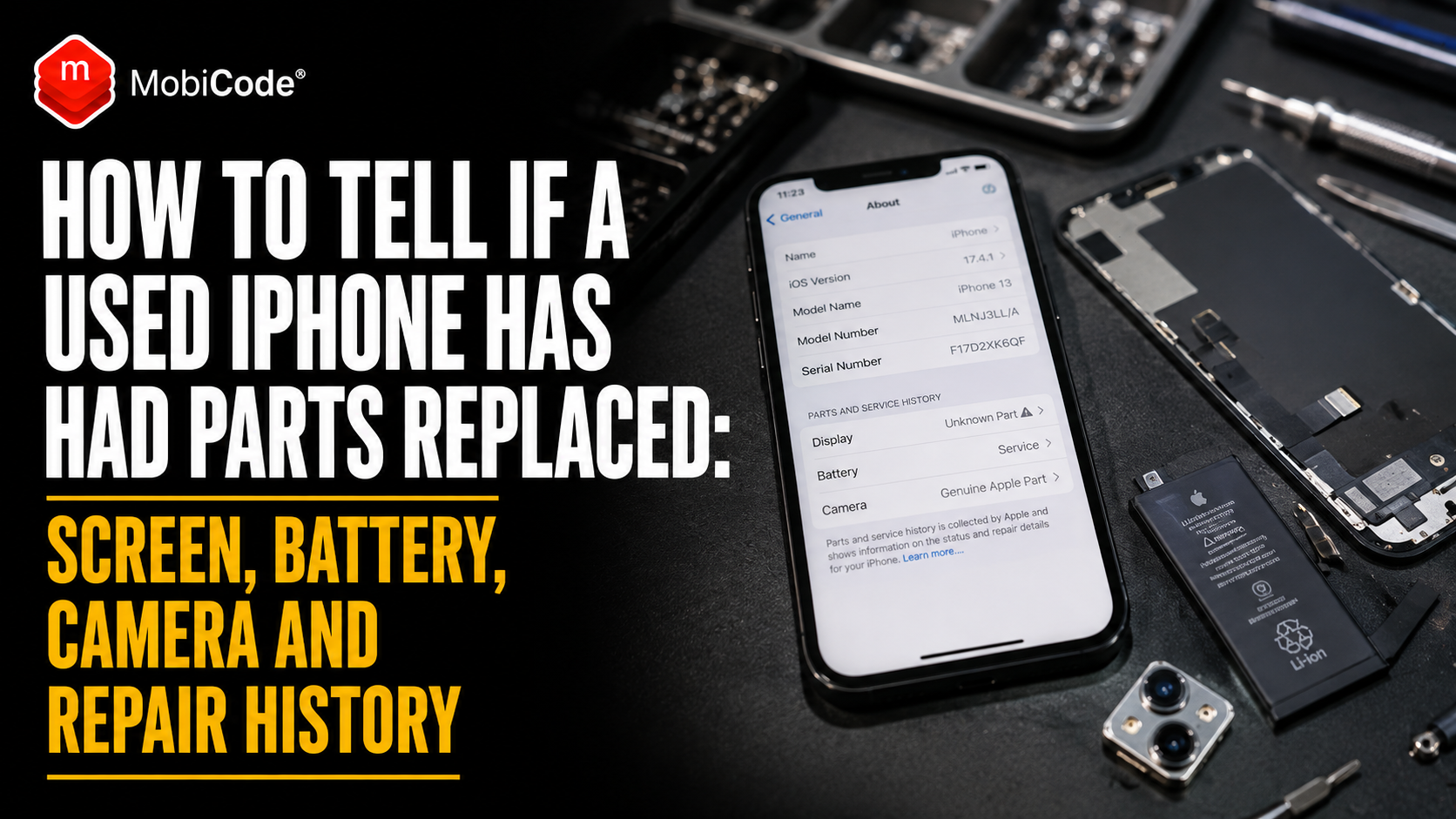
Want to check if an iPhone has genuine parts before you buy it? Start in Settings → General → About. On supported iPhones, Apple provides a Parts and Service History section that can show whether important components such as the battery, display, cameras or logic board have previously been replaced.
However, repair history is only one part of a safe second-hand purchase. Before paying, ask the seller for the IMEI and check the phone with MyMobiCheck for important lost, stolen, barred or blacklist indicators.
A replaced component is not automatically bad. In fact, a properly repaired iPhone with a genuine replacement battery may be a better purchase than an untouched handset with a badly degraded original battery.
Therefore, the important questions are different: what was replaced, what type of part was used, was the repair completed correctly and does the phone now work as it should?
This guide explains Apple’s Genuine, Used, Unknown, Unverified and Finish Repair messages. In addition, it shows how UK buyers can inspect a second-hand iPhone before handing over money.
What is iPhone Parts and Service History?
Parts and Service History is an Apple feature that records certain repairs on supported iPhones.
To look for it:
- Open Settings
- Tap General
- Select About
- Scroll to Parts and Service History
If a supported component has been replaced, the section may show information about that part and the repair status recorded by the phone.
Why does this matter when buying second-hand?
Previously, a buyer often had to rely on the seller’s word when asking whether a screen or battery had been changed. Now, supported iPhones can provide useful evidence directly in Settings.
Nevertheless, the feature is not a complete lifetime repair record. As a result, it should support your inspection rather than replace it.
Which replacement parts can an iPhone show?
The information available depends on the iPhone model. Therefore, do not expect every generation to show the same level of detail.
iPhone 12 models and later
On supported models, repair information can include:
- battery
- display
- logic board
- front camera
- rear cameras
iPhone 11 models
For these devices, the available history is more limited. In particular, supported repair information can cover:
- battery
- display
iPhone XR, XS, XS Max and some iPhone SE models
On these models, battery replacement information may be available.
Software version also matters. Consequently, update the handset to an appropriate supported version of iOS before assuming that missing repair information proves the device has never been opened.
What does “Genuine” mean in Parts and Service History?
If Genuine appears beside a component, the iPhone has recognised that replacement as a genuine Apple part fitted through a recognised repair process.
For example, the phone might show:
- Display — Genuine
- Battery — Genuine
- Rear Camera — Genuine
This is useful because it confirms that a repair has been recorded. However, it does not mean that the component is the original one fitted when the handset left the factory.
Genuine does not mean untouched
This distinction is important.
An iPhone showing Display — Genuine has had display service recorded. Therefore, the screen may be a genuine Apple replacement rather than the factory-installed display.
Similarly, a genuine replacement battery means the battery has been changed, not that the phone has never been repaired.
What does “Used” mean on an iPhone?
On supported newer devices, Parts and Service History can show Used beside a component.
This means the genuine Apple part had previously been installed or used in another iPhone. Therefore, Used does not automatically mean fake or counterfeit.
Is a used genuine part a problem?
Not necessarily. Even so, a previously used part may have experienced more wear than a new replacement.
For a battery, check:
- maximum capacity
- cycle count where available
- date of first use where shown
- charging behaviour
- unexpected shutdowns
- heat during normal use
Meanwhile, a used display should be tested for brightness, touch response, colour consistency and screen defects.
What does “Unknown Part” mean on an iPhone?
An Unknown message deserves further investigation. However, it does not have only one possible cause.
The message may appear when a replacement:
- is not recognised as a genuine Apple part
- is not working as expected
- has not been verified correctly after repair
- has been modified
- cannot otherwise be verified by the device
Consequently, you should not automatically translate “Unknown Part” into “cheap fake screen”. Instead, investigate what was repaired and how the component now performs.
Questions to ask the seller
Ask:
- what was repaired
- when the work was completed
- who carried out the repair
- whether an invoice exists
- whether the repair has a warranty
- why the phone now displays the Unknown message
Afterwards, test the relevant component carefully. If the explanation remains unclear, the uncertainty should affect the price you are willing to pay.
What does “Finish Repair” mean?
You may also see Finish Repair beside a recently replaced component.
This indicates that the repair process has not yet been fully completed through Apple’s repair configuration process.
Should you buy a phone showing Finish Repair?
Do not simply ignore the message. Instead, ask the seller or repairer to complete the repair before the transaction.
Once that process is finished, restart the handset and test it again. If the warning remains unexplained, treat the phone as requiring further investigation rather than as fully repaired stock.
What does “Unverified” mean?
An Unverified message may appear in relation to certain previously used logic-board repairs.
This deserves more attention than a routine battery replacement because the logic board sits at the centre of the device.
What should you test?
Where such a message appears, check:
- Apple Pay availability
- Face ID or Touch ID
- mobile-network performance
- Wi-Fi and Bluetooth
- camera operation
- IMEI and serial information
- available repair paperwork
For most private buyers, an unexplained logic-board replacement deserves considerably more scrutiny than a routine battery change.
How to tell if an iPhone screen has been replaced
For supported models, start with Parts and Service History.
Open:
Settings → General → About
Then look for a Display entry. Depending on the phone and repair, it may show Genuine, Used, Unknown or Finish Repair.
Inspect the display itself
Next, test the physical screen rather than relying only on the software record.
Check:
- touch response across the whole panel
- multi-touch gestures
- brightness
- colour consistency
- True Tone where expected
- automatic brightness
- screen uniformity
- edge response
- proximity behaviour during calls
Poorly fitted or unsuitable displays can produce touch, brightness, colour or sensor problems. Therefore, the repair status and the functional test should agree.
Can you tell an original iPhone screen just by looking?
Sometimes a poor-quality replacement is obvious. Nevertheless, visual inspection alone cannot reliably prove that a display is original.
Possible warning signs include:
- uneven bezels
- poor colour reproduction
- low brightness
- raised screen edges
- touch dead zones
- poor viewing angles
- unusual gaps around the frame
- dust beneath the display
However, a high-quality replacement may look convincing. For that reason, combine visual inspection with Parts and Service History and practical testing.
Does True Tone prove the screen is genuine?
No. True Tone working correctly is useful information, but it should not be treated as proof that the display is original.
Likewise, missing True Tone does not automatically prove that the screen is counterfeit.
Software configuration, previous repairs, sensor issues and component setup can all affect the result. Therefore, use the repair-history information as the stronger starting point on supported devices.
How to tell if an iPhone battery has been replaced
Battery replacement information is available on a wider range of iPhones than display history.
Open:
Settings → General → About
Then review Battery under Parts and Service History where available.
Check Battery Health as well
Afterwards, open:
Settings → Battery → Battery Health
Depending on the model, useful information may include:
- maximum capacity
- cycle count
- date of first use
- charging information
- performance messages
If the handset cannot verify the battery correctly, reported health information may be less useful. Consequently, practical testing becomes even more important.
Is a replacement battery a reason not to buy?
No. In fact, a good battery replacement can increase the useful life of an older iPhone.
Phone A: original battery with severe degradation and poor runtime.
Phone B: recently replaced genuine battery with good health and documented repair history.
In this example, Phone B may be the better purchase even though it has been repaired.
Therefore, focus on the quality and condition of the replacement rather than treating factory originality as the only measure of value.
How to check if an iPhone camera has been replaced
On supported newer models, Parts and Service History can record front and rear camera repairs.
First, check:
Settings → General → About
If a camera replacement appears, review its status and then test every lens.
Test each camera separately
Use:
- the main rear camera
- ultra-wide camera
- telephoto lens where fitted
- front camera
- portrait mode
- video recording
- autofocus
- flash
- image stabilisation
Meanwhile, look for focus hunting, shaking, dust, unusual noise, blurred areas or inconsistent colour.
Check Face ID after a front-camera repair
Face ID deserves particular attention where the front-camera system or related components have been repaired.
Test:
- unlocking the handset
- Face ID recognition
- authentication in supported apps
- front-camera portrait functions
If Face ID is unavailable, do not assume that a simple software reset will solve the problem. Instead, ask for the repair history and value the phone according to its current working condition.
Does no Parts and Service History mean the iPhone has never been repaired?
Not necessarily. This is one of the most important limitations of the feature.
Several factors affect what appears
The available information depends on:
- the iPhone model
- the component replaced
- the version of iOS
- the type of repair
- whether the part can be verified by the phone
Older iPhones do not expose the same level of repair detail as newer models. In addition, repeated work on the same component may not provide a complete history of every previous repair.
Therefore, treat the section as useful evidence rather than a complete lifetime maintenance log.
Can a repaired iPhone still be a good phone?
Absolutely. Phones are repairable products, so screens crack, batteries wear out and cameras occasionally fail.
A properly completed repair may extend a handset’s useful life considerably.
Ask better questions
Instead of asking only:
“Has this phone ever been repaired?”
find out:
- what was replaced
- which type of part was fitted
- who performed the work
- whether the repair was completed correctly
- whether a warranty remains
- whether the phone now passes functional testing
As a result, you can judge the quality of the repair rather than rejecting a perfectly good phone simply because work has been carried out.
Should a repaired iPhone cost less?
Sometimes. However, the effect on value depends heavily on the type and quality of the repair.
Repairs that may support the value
Examples include:
- a recently replaced genuine battery
- a professionally fitted display
- a documented camera repair that restored full functionality
Repairs that may reduce the value
Examples include:
- Unknown parts
- unfinished repair configuration
- an unverified logic board
- poorly fitted screens
- missing Face ID
- unclear repair history
- visible tool or frame damage
Consequently, avoid using a blanket rule that every repaired iPhone is worth less.
Ask for the repair invoice
If the seller says the handset was repaired professionally, ask whether the paperwork is still available.
A useful repair record may show:
- device model
- repair date
- component replaced
- repair provider
- amount paid
- repair warranty
- serial number or IMEI where recorded
Match the invoice to the phone
Next, compare those details with the physical handset.
An invoice mentioning an iPhone 15 Pro does not prove that the iPhone 15 Pro in your hand received that repair. Therefore, identifying information is far more useful than a generic receipt.
Check the IMEI as well as the repair history
Repair information answers only one category of risk.
For example, an iPhone with a genuine replacement screen could still have:
- a blacklisted IMEI
- a lost or stolen report
- outstanding finance
- Activation Lock
- MDM or Remote Management
- another undisclosed problem
Consequently, check both the physical condition and the device identity.
For private buyers
Ask the seller for the IMEI before purchase. Then run a MyMobiCheck IMEI check.
When you meet the seller, confirm that the number checked matches the IMEI displayed by the physical iPhone.
For phone shops and trade-in businesses
Professional businesses can use MobiCHECK as part of a wider device due-diligence process.
Repair history can then sit alongside status checks, diagnostics and grading.
Check whether the iPhone is Activation Locked
Repair condition means very little if the next owner cannot activate the handset.
Before paying, make sure the seller can remove their Apple Account and disable Find My through the correct process.
If the phone displays iPhone Locked to Owner, do not complete the purchase while the restriction remains.
Importantly, a genuine replacement battery or screen does not remove Activation Lock.
Look closely at the frame and screws
Software records are useful. Nevertheless, physical inspection can reveal work that deserves further questions.
Check:
- screws beside the charging port
- screen-to-frame gap
- rear-glass alignment
- camera surrounds
- buttons
- SIM tray fit
- frame dents
- adhesive residue
Signs of opening are not automatically bad because legitimate repairs require the phone to be opened. Instead, look for poor workmanship, impact damage or an unexplained repair.
Check water resistance carefully
A manufacturer’s original water-resistance rating should not be treated as proof that a used or repaired handset remains equally resistant.
Impact, ageing, previous opening and replacement seals can all affect the physical condition of the phone.
What should you inspect?
Look for:
- corrosion
- condensation
- lifting panels
- poorly fitted screens
- visible liquid-damage indicators where applicable
- charging-port contamination
However, do not deliberately submerge a used phone simply to test its seals.
Check the screen under different colours
A white webpage alone is not enough to assess a replacement display properly.
Use several solid backgrounds, including:
- white
- black
- grey
- red
- green
- blue
Then look for dead pixels, uneven brightness, screen burn, colour patches, flicker or pressure marks.
Test touch across the whole display
Next, drag an icon or draw continuous lines across every section of the panel.
A replacement display can appear visually perfect while a small area of touch input fails. Therefore, test the whole screen rather than tapping only a few icons.
Test the proximity and ambient-light sensors
These functions are easy to overlook during a quick inspection.
During a call, check whether the display behaves normally when the phone is brought towards your ear.
Afterwards, move between brighter and darker surroundings and observe automatic brightness where enabled.
Unexpected behaviour can indicate a display, sensor or repair problem.
Check the cameras for dust after repair
A phone that has been opened poorly may contain dust around or inside the camera system.
Take photographs of:
- a plain bright wall
- the sky
- small detailed objects
- text at close range
Repeat the test with each rear lens. If dark marks remain in exactly the same position, further investigation may be needed.
Check wireless charging and NFC
Rear-housing or internal repairs can coincide with faults that are not obvious during a visual inspection.
Where supported, test:
- wireless charging
- MagSafe attachment
- NFC
- Bluetooth
- Wi-Fi
- mobile signal
- GPS behaviour
In other words, do not test only the component that was replaced. A good post-repair inspection should cover the complete handset.
Check whether the seller is a private individual or trader
This distinction matters for UK consumer rights.
A genuine private sale differs from a purchase made from a business. Therefore, establish who is actually selling the device rather than relying only on the platform used to advertise it.
Buying from a business
Ask the trader for:
- advertised grade
- repair disclosures
- battery information
- warranty terms
- returns information
- details of replaced components
Used condition does not remove the need for accurate descriptions. Consequently, repair history should be reflected clearly where it materially affects the phone being sold.
Should a seller disclose replacement parts?
A good seller should explain important repairs that could affect a buyer’s decision.
For example, a useful listing might say:
“iPhone 14 Pro, 256GB. Genuine Apple display replaced in March 2026. Parts and Service History shows Genuine. Battery health 91%. Face ID, cameras, charging and display tested and working.”
This is considerably more informative than simply describing the handset as “excellent condition”.
What should a phone shop record when buying an iPhone?
Professional trade-in teams should make repair history part of the standard intake process.
Identity
- IMEI 1
- IMEI 2 where relevant
- serial number
- model
- storage capacity
Repair history
- whether Parts and Service History appears
- which component is listed
- Genuine, Used, Unknown, Unverified or Finish Repair status
- seller’s explanation
- repair invoice where supplied
Functional testing
- display
- battery
- cameras
- Face ID or Touch ID
- audio
- charging
- Wi-Fi
- Bluetooth
- NFC
- mobile network
Run professional diagnostics after checking repair history
Apple’s repair record does not test every function on the handset. Therefore, seeing Genuine beside Display should not end the inspection.
MobiCode TEST helps phone shops, repair centres and refurbishers run repeatable diagnostics across used devices.
Combine the checks
A stronger professional workflow includes:
- IMEI and device-status checking
- physical inspection
- Apple repair-history review
- functional diagnostics
- battery assessment
- grading
- final resale approval
Meanwhile, MobiONE can help connect those results to the correct device record.
A used-iPhone parts checklist for private buyers
- First, ask for the IMEI before travelling or paying
- Run an appropriate device-status check
- Match the checked IMEI to the physical phone
- Open Settings → General → About
- Review Parts and Service History
- Record every replacement component shown
- Understand whether the status says Genuine, Used, Unknown, Unverified or Finish Repair
- Ask the seller about every recorded repair
- Request invoices where available
- Check Battery Health
- Test the entire display and touch layer
- Try every camera
- Check Face ID or Touch ID
- Inspect the frame, screws and screen fit
- Test charging, audio and connectivity
- Confirm Activation Lock can be removed
- Finally, price the phone according to its actual condition
Red flags when checking a repaired iPhone
Investigate further when:
- the seller claims the phone has never been repaired but service history shows otherwise
- an Unknown Part message appears without explanation
- Finish Repair remains on the device
- an Unverified logic board is shown
- Face ID fails after a front-camera repair
- the display has touch dead zones
- True Tone or automatic brightness behaves unexpectedly
- battery information cannot be verified
- the repair invoice does not match the handset
- the seller refuses access to Settings
- the IMEI supplied beforehand differs from the physical phone
- the frame shows obvious poor-quality repair work
One issue does not automatically mean the handset is fraudulent. Nevertheless, several unexplained inconsistencies should affect both your decision and the price.
How MobiCode helps when buying or processing a repaired iPhone
Repair history provides useful information about parts. However, buyers and businesses still need to check the wider device.
-
MyMobiCheck gives private buyers and sellers a single-device IMEI check before money changes hands.
See: MyMobiCheck -
MobiCHECK supports professional device-status checks for phone shops, traders and recyclers.
See: MobiCHECK -
MobiCode TEST helps professional teams check whether a repaired handset functions correctly.
See: MobiCode TEST -
MobiONE connects device identifiers, status checks, tests and processing records.
See: MobiONE
In practice, Apple’s Parts and Service History provides one layer of evidence. MobiCode products complement that information by helping buyers and professional businesses assess the wider device identity, status and functional condition.

Common mistakes when checking a used iPhone’s parts
- Assuming Genuine means factory original
- Treating Used as automatically counterfeit
- Assuming Unknown always means a fake part
- Ignoring Finish Repair
- Checking repair history but not the IMEI
- Testing only the main camera
- Checking battery percentage instead of battery health
- Assuming True Tone proves the display is original
- Buying before Activation Lock is removed
- Trusting a repair invoice that does not identify the handset
- Assuming no Parts and Service History means no previous repair
- Rejecting every repaired iPhone regardless of repair quality
Commercial takeaway
So, how do you check if an iPhone has genuine parts? Start with Settings → General → About → Parts and Service History on a supported handset.
A Genuine message means the device recognises the replacement as a genuine Apple component fitted through a recognised process. Meanwhile, Used indicates that a genuine component had previously been installed in another iPhone.
By contrast, Unknown, Unverified and Finish Repair messages deserve further investigation.
However, repair history should never be considered in isolation. Before buying, check the IMEI, match it to the physical handset, confirm that Activation Lock is removed and test the display, battery, cameras, Face ID, charging, audio and connectivity.
Ultimately, a repaired iPhone can still be an excellent purchase. The goal is not necessarily to find a phone that has never been opened. Instead, look for a handset whose identity, repair history and current condition can all be explained and verified.
A practical example: two used iPhone 14 Pro phones
A buyer is choosing between two used iPhone 14 Pro handsets listed for similar prices.
The first seller describes their device as “all original”. However, its battery health is poor and no repair information has been volunteered.
By contrast, the second seller explains that the display was replaced after accidental damage. They provide an invoice and allow the buyer to inspect Parts and Service History.
Checking the repaired phone
The second iPhone shows:
Display — Genuine
Next, the buyer tests touch response, True Tone, brightness, Face ID and every camera. All of those functions work normally.
They then check the IMEI through MyMobiCheck and confirm that the number matches the physical handset.
The unexpected result
When inspecting the first phone, the buyer discovers an Unknown Battery message that the seller had not mentioned.
The handset may still work perfectly well. Nevertheless, its advertised history is now inconsistent with the evidence shown by the device.
In this case, the repaired second phone may actually represent the clearer purchase because the work is documented, recognised and testable.
The lesson is simple: repair history is not necessarily the problem; unexplained repair history is.
Frequently asked questions
How can I check if an iPhone has genuine parts?
On supported models, open Settings, choose General and then About. If the iPhone has recorded repairs, Parts and Service History can show whether supported replacement components are Genuine, Used, Unknown, Unverified or awaiting completion.
How do I know if an iPhone screen has been replaced?
For supported models, open Settings → General → About and review Parts and Service History. A Display entry indicates recorded display service and may show its current repair status.
What does Unknown Part mean on an iPhone?
Unknown can appear when a replacement cannot be verified correctly, is not working as expected, has been modified or is not recognised as a genuine part. Therefore, ask about the repair and test the component carefully.
What does Used Part mean on an iPhone?
On supported newer devices, Used indicates that the genuine Apple component had previously been installed or used in another iPhone. Consequently, the message does not automatically mean the part is counterfeit.
Is it bad to buy an iPhone with a replacement screen?
Not necessarily. A professionally fitted replacement screen can be perfectly acceptable. However, check the recorded part status, repair evidence and functions such as touch, brightness, True Tone and Face ID before deciding.
Does no Parts and Service History mean the iPhone is original?
Not conclusively. The information available depends on the model, software version and component. Therefore, use the repair-history section as one part of a wider physical and functional inspection.
Can I check whether an iPhone battery has been replaced?
Yes, on supported models. Open Settings → General → About and review Parts and Service History. Afterwards, check Battery Health and any battery-verification messages as well.
What else should I check before buying a repaired iPhone?
In addition to repair history, check the IMEI, lost or stolen status, Activation Lock, battery health, screen, cameras, Face ID, charging, speakers, connectivity and physical repair quality before handing over money.
References and further reading
- Apple Support: iPhone Parts and Service History
- Apple Support: About genuine iPhone displays
- Apple Support: About genuine iPhone batteries
- Apple Support: Use Repair Assistant to finish an iPhone repair
- Apple Support: iPhone service and repair
- GOV.UK: Consumer products – buying second-hand goods
- MyMobiCheck: Single-device IMEI check
- MobiCHECK
- MobiCode TEST
- MobiONE