

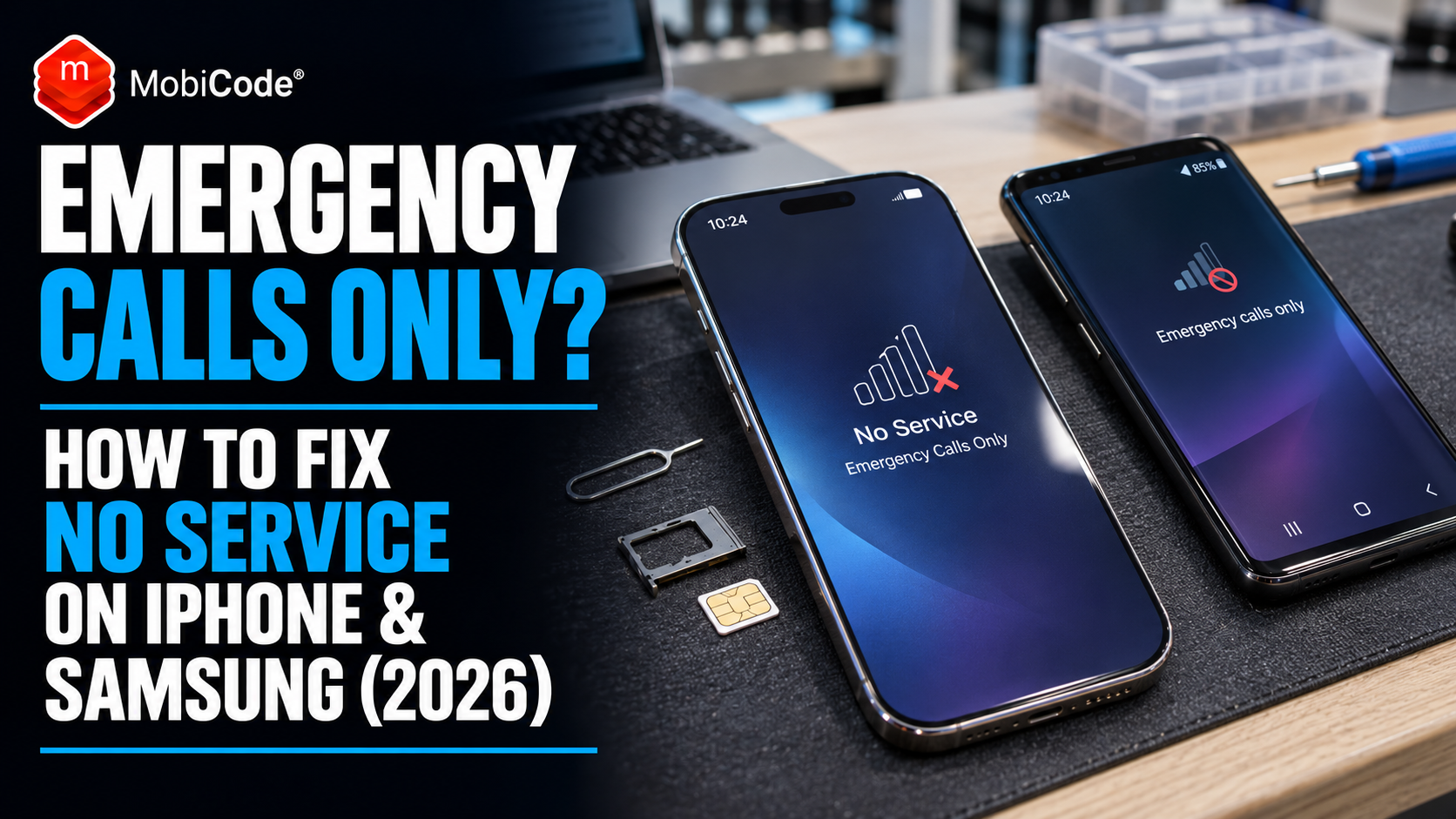
Your phone was working yesterday. Today it says “Emergency Calls Only”, “No Service” or “Not Registered on Network”. You cannot make normal calls, your mobile data has stopped working, and restarting the phone has not helped. What has actually gone wrong?
The good news is that this doesn’t automatically mean your phone is broken or blocked. Sometimes the explanation is as simple as a temporary network outage, an inactive eSIM or a SIM card that is no longer connecting properly.
However, there is another possibility worth investigating, especially if you recently bought a second-hand phone: the device itself may have been barred or blacklisted through its IMEI number.
This 2026 UK guide explains what these warnings mean, how to fix the most common causes on iPhone and Samsung Galaxy devices, and how to recognise when an IMEI status check or professional diagnostic test is the sensible next step.
Last reviewed: 3 November 2026
Quick answer: Why does my phone say Emergency Calls Only?
“Emergency Calls Only” means your phone cannot currently connect to your normal mobile service. Depending on the handset and network, it may still be able to contact emergency services through another available network.
The most common things to investigate are:
- Poor signal or a temporary mobile network outage
- An inactive, damaged or incorrectly configured SIM or eSIM
- An account, activation or mobile service problem
- Incorrect network settings or a temporary software fault
- A network block or blacklisted IMEI
- A fault with the phone’s cellular hardware
Start with the network and SIM checks below. If the problem continues, ask your provider to confirm whether the handset is barred before paying for repairs or replacing the phone.
What does Emergency Calls Only actually mean?
A mobile phone needs more than a working screen and a charged battery to make a normal call. It needs access to a compatible mobile network and an active service that the network recognises.
When something interrupts that connection, the phone may display a warning instead of its usual network name.
On Samsung Galaxy and other Android devices, the message is often “Emergency calls only”. On an iPhone, you might see “No Service”, “Searching” or an SOS-related indicator, depending on the software, region and circumstances.
These messages tell you that normal mobile connectivity is unavailable. They do not identify the exact cause.
Apple’s official No Service troubleshooting guidance specifically recommends checking coverage, account status, SIM settings and whether the device has been blocked or barred.
Samsung likewise advises users to investigate signal strength, SIM activation and SIM card problems when normal calling stops working.
Emergency Calls Only vs No Service vs No SIM: what’s the difference?
The wording matters because different warnings point towards different parts of the connection process.
| Phone warning | What it usually means | What to check first |
|---|---|---|
| Emergency Calls Only | The phone cannot connect to normal mobile service but may have emergency network access. | Coverage, SIM activation and account status. |
| No Service | The handset is not connected to a mobile network. | Signal, outages, mobile line settings and restrictions. |
| No SIM / SIM Not Detected | The device cannot recognise or use the expected SIM. | Physical SIM, SIM tray, eSIM activation or SIM hardware. |
| Not Registered on Network | The mobile network has not successfully registered the device or service. | SIM provisioning, provider status and device restrictions. |
| SIM Not Supported | The SIM may be incompatible, restricted or affected by a carrier lock. | Network compatibility and carrier-lock status. |
One important distinction: a phone displaying Emergency Calls Only is not proof that its IMEI has been blacklisted. An ordinary network outage can produce a similar symptom.
10 ways to fix Emergency Calls Only or No Service
Work through these checks in order. The first few take only moments and can save you from unnecessarily resetting your phone or paying for a repair.
1. Check whether your network is experiencing an outage
Before changing anything on the handset, find out whether other people are having the same problem.
If a friend or family member uses the same network, ask whether their calls and mobile data are working. You can also check your provider’s service-status page using Wi-Fi or another device.
In the UK, Ofcom’s Map Your Mobile tool lets you compare mobile coverage using a postcode.
That is useful for identifying weak coverage, although a coverage prediction does not confirm whether there is a temporary outage. For live faults or maintenance, use your provider’s own status information.
In October 2026, Ofcom also updated its guidance about connectivity during severe weather, explaining how outages can interrupt mobile services.
What this tells you: If several phones on the same network suddenly stop working in the same area, investigate the provider before blaming your handset.
2. Turn Airplane Mode on and off
This is one of the quickest ways to encourage the phone to reconnect.
- Open your phone’s quick settings or Control Centre.
- Switch Airplane Mode on.
- Leave it enabled for at least 15 seconds.
- Switch it off.
- Allow the phone to search for a network again.
Apple includes this method in its official iPhone troubleshooting instructions.
It will not fix an IMEI blacklist or an inactive contract. However, it can help with a temporary connection problem.
3. Restart the phone
A restart can clear temporary software or network-registration problems.
Turn the phone off normally, then switch it back on. Once it starts, check whether your network name and signal bars have returned.
If the warning disappears and normal calls work again, you probably do not need to investigate further unless the issue keeps returning.
4. Check the SIM card or eSIM
A damaged SIM, inactive eSIM or interrupted activation can leave a perfectly good phone without mobile service.
For a physical SIM, switch off the handset and inspect the card if it is safe to remove. Make sure it is correctly positioned and that the SIM tray is not damaged.
For an eSIM, open your phone’s mobile network settings and check that the relevant line is installed, enabled and activated by the provider.
Do not delete an eSIM profile simply to experiment. You may need your network to issue a new activation or QR code before you can reconnect.
Samsung’s SIM troubleshooting guidance identifies inactive eSIMs, damaged SIM cards and temporary software errors as possible causes of mobile connectivity failure.
5. Confirm that your mobile account is active
Sometimes the phone is fine but the service itself has a problem.
For example, a recently transferred number might not have completed activation. A pay-as-you-go SIM may be inactive, or the network may have applied a restriction to the account.
Contact your provider and ask:
- Is my mobile service currently active?
- Is there an outage or restriction affecting my account?
- Is my SIM or eSIM correctly provisioned?
- Is the handset IMEI blocked or barred?
That last question becomes particularly important if you purchased the phone from somebody else.
6. Check Dual SIM and mobile line settings
Modern smartphones can support multiple mobile lines through physical SIMs, eSIMs or a combination.
If the wrong line is disabled, you may lose calls or mobile data even though the phone appears normal.
On an iPhone, open Settings > Mobile Service or Mobile Data, then review the available lines.
On a Samsung Galaxy, open Settings > Connections > SIM manager, where available.
Check that the line you want to use is enabled. Menu names vary with device and software version.
7. Install relevant software and network settings updates
Mobile networks and handset software occasionally need updated settings to work correctly.
Connect to a trusted Wi-Fi network and check whether your phone has a pending software update.
On iPhone, you can also visit Settings > General > About to see whether a network provider settings update is offered.
Complete any required updates, then test the connection again.
8. Reset network settings if the problem continues
If the phone still cannot connect, resetting its network settings may help with an incorrect configuration.
On iPhone, the relevant option is generally found under:
Settings > General > Transfer or Reset iPhone > Reset > Reset Network Settings
On Samsung, look for the network reset options under the device’s general management or reset settings. The exact path varies.
Before resetting: Understand what will be removed. Saved Wi-Fi connections, network preferences and other connection settings may need to be configured again.
A network reset will not remove a genuine IMEI blacklist or reverse an account-level restriction.
9. Check whether the phone’s IMEI has been blocked
This is where the investigation changes.
If the network is operating normally, your account is active and the SIM works in another compatible phone, the handset itself deserves closer attention.
A possible explanation is an IMEI block.
An IMEI, or International Mobile Equipment Identity, is an identifier associated with the phone’s cellular equipment. Networks and device-status checking services use it to identify relevant handset records.
Some devices have two IMEIs because they support multiple cellular lines.
You can normally display your IMEI by dialling:
IMEI display code on supported mobile phones
You can also find the IMEI in the phone’s settings or device information screen.
Your mobile provider can investigate network-side restrictions. A device-status service can provide additional information about recorded blocks or relevant risk indicators.
Bought your phone second-hand? Check its status.
A phone can look genuine, power on normally and still have an IMEI-related problem.
MyMobiCheck offers single-device IMEI checks for people buying or selling used handsets. For retailers and professional phone buyers, MobiCHECK provides a broader commercial due-diligence service.
A status check can help identify recorded problems, but it cannot diagnose every cause of a mobile signal failure or guarantee a device will never be blocked later.
Professional buyer or phone shop? Explore MobiCHECK for businesses.
10. Investigate possible hardware problems
If the provider confirms there is no account restriction or IMEI block, and a known-working SIM still fails in the phone, a hardware fault becomes more plausible.
Cellular connectivity depends on several components, including radio hardware and antennas. Damage or internal faults can prevent a phone from registering on a network.
A damaged charging port or unreliable Wi-Fi connection does not necessarily mean the cellular modem has failed. These are separate functions, which is why structured testing matters.
A reputable repair specialist can investigate the issue. Phone retailers and refurbishers can also use professional diagnostic tools to test supported device functions and document the results.
How can you tell if a phone is blocked rather than simply out of signal?
Imagine buying a used iPhone from a private seller.
It connects to Wi-Fi and the screen works perfectly. You transfer your SIM, but the phone refuses to connect to your network.
You restart it, try Airplane Mode and check that the SIM itself works in your old handset.
At this stage, you have narrowed down the problem, but you still have not proved the device is blacklisted.
A better approach is to compare several pieces of evidence.
| What you discover | What it suggests |
|---|---|
| Other customers on the same network have no service nearby. | A local outage may be responsible. |
| Your SIM fails in multiple compatible phones. | Investigate the SIM, activation and account. |
| A known-working SIM fails only in one handset. | Investigate handset configuration, restrictions or hardware. |
| A network or device-status check identifies a block. | The recorded block needs investigation with the relevant provider or reporting party. |
| No block is found, but connectivity still fails. | Continue network and hardware diagnostics. A clean status check is not a hardware test. |
The crucial lesson is that network symptoms, device-status records and hardware test results answer different questions.
Why might a second-hand phone become blocked?
There are several reasons a handset may acquire a network block or relevant status warning.
The phone was reported lost or stolen
When an owner reports a device lost or stolen, the network or another authorised organisation may take action against its IMEI.
This can affect the phone’s ability to use participating mobile networks.
Citizens Advice advises people to report lost or stolen phones to their mobile provider and, in cases of theft, the police. The IMEI helps identify the handset involved.
An insurance claim was made
A handset connected to a loss or theft insurance claim may have relevant status information recorded against it.
For second-hand buyers, that matters because the device’s visible condition does not establish its ownership or claims history.
There is a finance or contractual issue
Some phones are supplied through finance, lease or rental agreements.
Those arrangements differ. An outstanding finance balance does not automatically mean the device is barred, but certain agreement breaches or legitimate contractual interests may create restrictions or warnings.
A phone buyer should investigate an active finance or ownership concern rather than treating it as a routine signal problem.
The status changed after the handset was purchased
This is one of the less obvious risks in the used-phone market.
A phone may pass an initial check and later become subject to a new report or block.
That is why professional buyers may want more than a one-off check, particularly when purchasing expensive devices from unfamiliar suppliers.
MobiCode’s MobiCHECK+ service offers 30-day IMEI monitoring to help businesses identify relevant changes during that period.
For a more detailed explanation, see our guide to checking whether a phone has been reported stolen using its IMEI.
Can a blacklisted phone still use Wi-Fi?
Yes, in many circumstances.
An IMEI block generally concerns the device’s access to participating cellular networks. It does not automatically disable its Wi-Fi hardware or erase everything stored on the phone.
That distinction explains why a blocked device can sometimes appear to work perfectly during a quick demonstration.
For example, a seller might show you that the phone:
- Turns on and unlocks
- Connects to a home Wi-Fi network
- Opens websites and apps
- Plays videos
- Uses its cameras normally
None of those tests establishes that the handset can register on a mobile network or that its IMEI has no adverse records.
Similarly, successful Wi-Fi Calling is not proof of unrestricted ordinary cellular service.
Does factory resetting a phone remove an IMEI blacklist?
No. A factory reset is not a legitimate method for removing a network-level IMEI block.
A reset may remove local user settings and data, but it does not automatically change external device-status records held by mobile networks or other relevant organisations.
It also does not necessarily remove Apple Activation Lock, Android Factory Reset Protection or a business device-management restriction.
These protections operate differently, and they need to be addressed through the appropriate owner, provider or authorised support process.
Be cautious about websites promising instant guaranteed IMEI unblocking. If the handset has a legitimate network restriction, contact the relevant provider or organisation rather than paying an unknown service.
What should you do if you bought a blocked phone in the UK?
If you have recently bought a phone that will not connect to a mobile network, preserve the facts before attempting repairs or another resale.
- Confirm the problem. Check coverage, SIM status, account activation and the handset’s IMEI.
- Keep your evidence. Save the listing, receipt, seller messages, payment records and any device-status result.
- Contact the seller. Explain the fault and ask for a resolution without making unsupported allegations.
- Use the relevant dispute process. If the phone came from an online marketplace or business retailer, follow its complaints or buyer-protection procedure.
- Ask the network about the block. Find out whether the provider can confirm the restriction and explain the next legitimate steps.
Your rights may differ depending on whether you bought from a business or a private individual.
If a business sold you a handset that was not as described or was not fit for its intended purpose, UK consumer protections may be relevant. Private sales have different rules.
For guidance about your particular circumstances, consult Citizens Advice consumer guidance.
Avoid trying to sell the handset on to somebody else without first establishing the issue and accurately disclosing any unresolved restrictions.
Phone shops: why Emergency Calls Only should trigger a proper intake check
For an individual customer, this problem is frustrating.
For a business that buys, repairs or refurbishes dozens of phones, it can become expensive.
Consider a typical trade-in counter.
A customer offers a smartphone that looks almost new. The screen is clean, the cameras work and the battery appears healthy.
Your employee completes a quick inspection and agrees a purchase price.
Later, during refurbishment, another member of staff discovers that the device cannot connect to a mobile network.
The problem is now your inventory problem.
You have paid for the handset, taken it into stock and potentially spent money processing it before discovering a critical issue.
A better workflow checks device identity, status and relevant functionality before the business commits money or releases the phone for resale.
MobiCHECK: investigate the handset’s IMEI status
MobiCHECK gives professional phone buyers access to device-status checks using multiple independent datasets.
MobiCode’s service draws on information associated with mobile networks, law enforcement, insurers and the device recycling industry, including the GSMA Global Blacklist Registry.
Depending on the available records, a check can identify relevant issues such as:
- Lost or stolen status
- Recorded network blocks or blacklisting
- Relevant insurance claim indicators
- Finance-related status information
- IMEI validation and device identity information
- Relevant warnings or records within MobiCode’s data ecosystem
This supports a more informed decision about whether to accept, hold or investigate a device.
However, it is still a status check. It does not establish that every hardware component works or guarantee that every possible issue will appear in the available datasets.
MobiTEST: investigate functional problems
Where a handset’s status is acceptable but its behaviour is suspicious, testing becomes the next part of the process.
MobiTEST provides guided mobile-device diagnostics for commercial operators.
Its supported workflows include checks covering:
- Screen and touchscreen response
- Physical buttons
- Speakers and microphones
- Sensors
- USB, Wi-Fi and Bluetooth connectivity
- Device grading information
- Activation-lock and blocklist-related workflow checks
MobiTEST also offers reporting, configurable workflows and integration with MobiCHECK checking functionality.
That makes it easier for businesses to distinguish a recorded device-status concern from a functional issue requiring further investigation.
A particular mobile-network fault may still require specialist cellular diagnostics or a provider investigation. General functional tests should not be treated as proof that a handset’s modem or antenna is fault-free.
Stop buying phone problems you could have caught earlier.
If your business purchases, repairs or refurbishes used phones, the right checks can help protect margins and improve consistency.
Investigate relevant IMEI, blacklist and device-history information before accepting a phone.
Use structured diagnostic workflows to identify functional faults and maintain consistent testing records.
Whether you run an independent phone shop or a larger processing operation, MobiCode can help you choose a suitable combination of checking and diagnostic tools.
A practical network-fault workflow for used-phone businesses
A reliable process does not have to be complicated. The key is making sure every employee follows the same checks.
Record the physical handset
Capture the IMEI, model and internal stock reference. Where relevant, record both IMEIs on dual-SIM devices.
Investigate device status
Use MobiCHECK to investigate available blacklist, loss, theft and other relevant status information before accepting the device.
Run functional diagnostics
Use a repeatable diagnostic workflow. Where cellular service is part of your acceptance criteria, verify it separately with appropriate network and SIM tests.
Hold unresolved exceptions
If the handset shows an unexplained network issue, do not automatically grade it as fully functional. Escalate it for the right checks.
Keep the result with the device
Record checks, findings, actions and the final purchase or repair decision so colleagues can understand what happened later.
This protects more than the initial purchase.
It can also make customer support, warranty reviews, grading decisions and supplier conversations easier because the business has a recorded basis for its decisions.
Why the distinction matters for refurbishment and resale
The UK’s used-phone market offers real opportunities, but buyers increasingly expect more than a handset that looks good.
Research released by Alchemy and CCS Insight in June 2026 found that 41% of surveyed UK consumers would consider buying a refurbished smartphone.
That figure measures willingness to consider a purchase, not completed sales. Nevertheless, it illustrates the potential audience for used and refurbished devices.
For phone shops, trust is a commercial advantage.
A customer who buys a refurbished handset expects mobile calls to work, not just its touchscreen and Wi-Fi.
That means professional refurbishment should include the right combination of:
- Device identity and IMEI checks
- Network and account-lock checks
- Relevant functional diagnostics
- Battery and charging assessment
- Clear grading and fault disclosure
- Appropriate secure data erasure
- Accurate device records
MobiCHECK and MobiTEST address different parts of that process. For businesses with larger processing requirements, MobiCode’s wider device-processing solutions can support more connected workflows.
Frequently asked questions
Why is my phone saying Emergency Calls Only when I have signal?
Your handset may be detecting an available mobile network without being able to register for your normal service. Check your SIM activation, account, coverage and network settings. If those are normal, ask the provider whether the device is barred.
Why does my Samsung say Emergency Calls Only?
A Samsung Galaxy may display Emergency Calls Only when it cannot connect to the normal mobile network. Possible reasons include weak coverage, an inactive or damaged SIM, network restrictions or handset problems. Start with coverage and SIM checks rather than assuming the device is blocked.
Why does my iPhone say No Service?
An iPhone displaying No Service is not connected to a mobile network. Apple recommends checking coverage, restarting the device, reviewing your SIM or eSIM, installing relevant updates and confirming with the network provider that the device is not blocked or barred.
Does Emergency Calls Only mean my phone is blacklisted?
No. It means normal mobile service is unavailable. An IMEI blacklist is one possible explanation, but a network outage, account problem, SIM fault or hardware issue can create similar symptoms. You need more evidence to establish the cause.
Can an IMEI check tell me if a phone is blocked?
A device-status checking service can help identify recorded network blocks and other relevant IMEI information from its available data sources. MobiCHECK is designed for professional device due diligence, while MyMobiCheck offers a single-device checking route. Neither is a complete hardware diagnostic test.
Can a blacklisted phone still use Wi-Fi?
Often, yes. IMEI network blocking generally concerns cellular network access. Wi-Fi connectivity, camera functions and other local features may continue to work. A successful Wi-Fi test does not establish that a phone is clear for normal mobile use.
Will a new SIM fix a blacklisted phone?
A replacement SIM may resolve a SIM fault or activation problem. It will not ordinarily remove an IMEI block affecting the handset itself. Ask the provider to investigate the restriction before spending money on unnecessary replacements.
Can a phone become blacklisted after purchase?
Yes. A relevant device-status record can change after a transaction, for example following a later loss or theft report. Professional buyers can consider monitoring services such as MobiCHECK+ to help detect relevant changes during a defined period.
Can MobiTEST tell whether a phone has an IMEI problem?
MobiTEST supports professional diagnostics and includes integrated MobiCHECK checking functionality for relevant device-status investigations. Its functional tests and IMEI checks address different aspects of the handset. A specific cellular problem may still require further specialist or network-provider investigation.
The bottom line: fix the cause, not just the warning
An Emergency Calls Only or No Service message can have several explanations, ranging from an ordinary network outage to a more serious device-status or hardware problem.
For consumers, the best approach is to work through simple connectivity checks, confirm the account and SIM are active, and investigate the handset’s IMEI if there is a reason to suspect a restriction.
For phone businesses, the lesson is slightly different.
Don’t wait until a customer complains or an expensive handset fails final inspection to find out that something is wrong.
Build device-status checks and appropriate diagnostics into the intake process so your team can identify problems before they become avoidable commercial losses.
Know what you’re buying. Know what you’re testing.
MobiCode helps phone retailers, recyclers and refurbishers check device status, run consistent diagnostics and make better-informed processing decisions.
MobiCHECK identifies relevant device-status risks. MobiTEST supports structured testing. Together, they help create a more reliable process for used-phone businesses.
Sources and further reading
The practical advice in this guide draws on official manufacturer and UK regulator information alongside MobiCode’s published product documentation.
- Apple Support — If you see SOS, No Service or Searching. Official troubleshooting guidance for iPhone mobile-network problems.
- Samsung Support — Emergency Calls Only. Manufacturer guidance covering weak signals and SIM-related problems.
- Ofcom — Map Your Mobile. UK mobile network coverage information and postcode-based comparison.
- Ofcom — Staying connected during severe weather. Updated October 2026 guidance about mobile service disruption and emergency connectivity.
- Citizens Advice — What to do if your mobile phone is lost or stolen. UK advice on informing network providers and reporting theft.
- Mobile News — Alchemy and CCS Insight refurbished-market research, June 2026. UK consumer attitudes towards refurbished devices.
- MobiCode — MobiCHECK. Professional IMEI and device-history due diligence.
- MobiCode — MobiTEST. Guided device diagnostics and functional testing for businesses.