

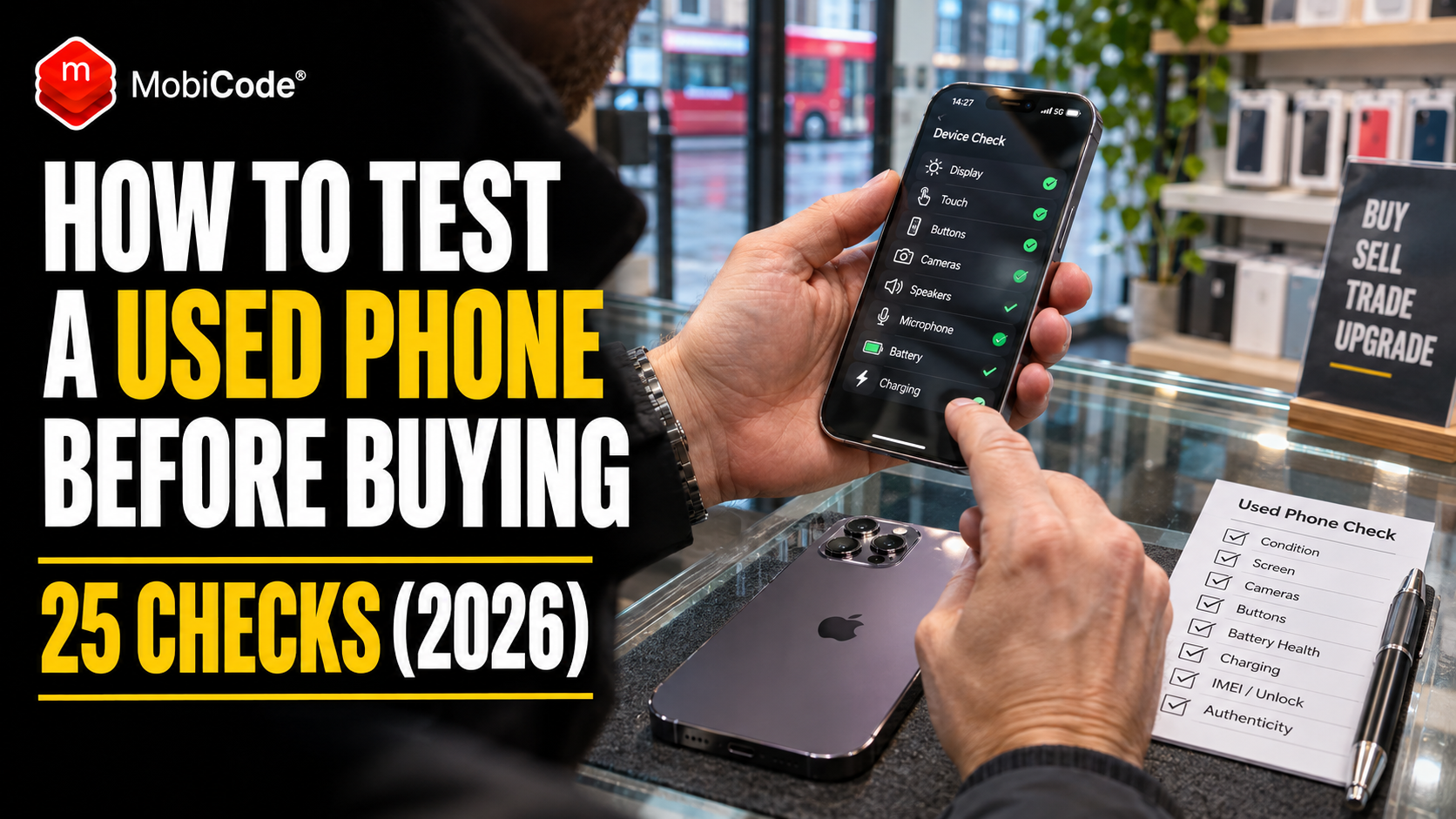
Want to test a used phone before buying it? A second-hand iPhone or Samsung can look almost brand new while hiding a faulty microphone, unreliable touchscreen, worn battery or charging problem. Knowing what to check could save you from an expensive mistake.
Whether you’re buying from Facebook Marketplace, collecting an eBay purchase or inspecting a refurbished handset in a shop, the same principle applies: appearance alone does not prove that a phone works properly.
For example, a phone might take excellent photographs but struggle to connect to Wi-Fi. Another could have a flawless display yet fail to recognise touches around the edges.
Fortunately, you can identify many common problems with a few practical checks.
This guide explains how to test a used phone using a 25-point checklist. You’ll learn how to inspect an iPhone, run Samsung Galaxy diagnostics, use Google’s Pixel testing tools and recognise problems that deserve further investigation.
We’ll also explain how professional retailers and refurbishers can use MobiTEST, MobiCode’s professional mobile phone diagnostics platform, to make testing more consistent across employees and larger device batches.
Quick answer: How do you test a used phone?
Before buying a second-hand phone, check its screen, touchscreen, cameras, microphones, speakers, charging connection, battery health, wireless connectivity and account status.
For manufacturer diagnostics:
- Samsung Galaxy: Open Samsung Members, select Support, then View tests and Test all.
- Google Pixel: On a supported device, use the Phone app to enter *#*#7287#*#* while connected to the internet.
- Apple iPhone: Follow Apple’s pre-owned iPhone inspection guidance and check Battery Health, Parts and Service History, connectivity and hardware functions.
Important: A successful hardware test does not automatically prove a phone is free from Activation Lock, network blocks or ownership-related problems. Those require separate checks.
Why should you test a used phone before buying?
Second-hand smartphones can offer good value, especially when buyers choose an older flagship model rather than a brand-new handset.
However, every used phone has a different history.
For example, one iPhone may have spent most of its life inside a protective case. Another may have experienced several drops, repairs or battery replacements.
Even when both look similar, their condition can be very different.
In its 2026 refurbished-phone buying guidance, Which? recommends checking important functions such as cameras, biometric security and accessories when receiving a second-hand device.
Cosmetic condition does not guarantee functionality
A phone may have an excellent cosmetic grade but still contain a hardware problem.
For example, a damaged microphone may not be visible from the outside.
Likewise, a touchscreen fault might only appear when you tap a particular area.
Therefore, testing should cover more than scratches and dents.
Hidden problems can affect the purchase price
Suppose you pay £300 for a refurbished smartphone.
After purchase, you discover that its charging connection is unreliable.
The device may require professional inspection or repair, creating inconvenience and potentially affecting its value.
Consequently, finding problems before completing a purchase gives you a clearer basis for deciding whether to proceed.
Professional retailers face the same problem at scale
For a consumer, discovering one faulty handset can be frustrating.
For a retailer buying hundreds of phones, inconsistent testing can become a significant commercial issue.
For example, employees may test different functions or forget to record failures.
This is why businesses often use structured device-testing workflows rather than relying entirely on informal manual checks.
How to test a used phone: the 25-point checklist
The following checklist covers five important areas: device identity, display and hardware, cameras and audio, connectivity and battery condition.
It is designed for buyers inspecting a phone with the seller’s permission.
Some tests require the handset to be unlocked, activated or connected to a suitable service.
Part 1: Device identity and physical condition
- Confirm the model and storage: Check that the handset matches the seller’s description.
- Verify the IMEI: Compare the device identifier with appropriate records and carry out relevant status checks.
- Inspect the casing: Look for dents, unusual gaps, bending and signs of previous damage.
- Check the screen glass: Look closely for cracks, deep scratches and lifting edges.
- Examine the ports: Look for debris, corrosion or visible damage around charging connections.
Part 2: Screen, controls and sensors
- Check screen colours: Look for dead pixels, bright spots, discolouration and uneven lighting.
- Test the touchscreen: Swipe and tap across the entire display, including edges and corners.
- Test physical buttons: Check the power, volume and other available controls.
- Check biometric security: Verify that supported fingerprint or facial recognition can be configured and used appropriately.
- Test motion and proximity sensors: Check screen rotation and call-related proximity behaviour where available.
Part 3: Cameras, sound and vibration
- Test the rear cameras: Check photographs, autofocus and available zoom options.
- Test the front camera: Confirm that selfies and video capture work correctly.
- Test the microphone: Record a short audio clip and play it back.
- Test the speakers and earpiece: Check media playback and call audio where possible.
- Test vibration and haptics: Confirm that supported alerts and feedback operate correctly.
Part 4: Connectivity and location
- Test Wi-Fi: Connect to an authorised network and check that the connection remains stable.
- Test Bluetooth: Pair with a compatible accessory where available.
- Test mobile connectivity: Confirm appropriate mobile-network access with a compatible SIM or eSIM.
- Test calling: Make an authorised test call to check voice communication.
- Test GPS and location: Check whether a mapping app can establish an appropriate location.
Part 5: Power, battery and device readiness
- Check battery health: Review available battery-condition information and relevant warnings.
- Test wired charging: Confirm that the connection works with appropriate charging equipment.
- Test wireless charging: Where supported, check that the handset accepts power from a compatible charger.
- Review repair information: Check available parts and service records, especially on supported iPhones.
- Verify account readiness: Make sure the handset can be transferred to a new owner without unresolved account restrictions.
What if a phone fails one of these tests?
A failed test does not always prove permanent hardware damage. Sometimes a setting, accessory or temporary software issue is responsible. However, do not ignore the result. Investigate the cause, ask the seller to resolve it or reconsider the purchase.
How to test a used iPhone before buying
Apple publishes official guidance covering the inspection of pre-owned iPhones.
It recommends checking physical condition, battery health, repair history, network compatibility and important hardware functions.
Apple also advises buyers not to purchase an iPhone with unresolved Activation Lock.
See Apple’s official guide to buying a pre-owned iPhone.
Check the iPhone model and storage
With the handset appropriately unlocked, open Settings → General → About.
Review the model information, capacity and other relevant details.
For example, if the seller advertised a 256GB handset, confirm that the phone actually has that capacity.
Also check that the model matches the listing and any purchase documentation.
Test the iPhone screen and touchscreen
Start by inspecting the display under suitable lighting.
Look for cracks, scratches, unusual brightness and discolouration.
Next, move an icon or interact with the screen across different areas.
For example, test whether the device recognises touches close to the edges.
However, avoid modifying the seller’s settings or rearranging their personal information without permission.
Test the iPhone buttons and speakers
Check the volume buttons and side button.
Then play an appropriate audio sample through the phone’s speakers.
If possible, test a call using the earpiece and a voice recording using the microphone.
A phone can appear functional during ordinary app use while still having a fault in one audio component.
Check the iPhone cameras
Open the Camera app and try the available front and rear cameras.
Take photographs of nearby objects at different distances.
Then check whether the camera focuses properly.
Where the handset supports multiple lenses or zoom settings, test the available options.
For example, a fault affecting one lens might not appear when the main camera works normally.
How to check iPhone battery health before buying
Battery condition deserves particular attention when buying an older iPhone.
Every rechargeable battery experiences wear over time.
Consequently, two identical iPhones can provide different battery life even when their appearance is similar.
iPhone 14 and earlier: Battery Health & Charging
On supported iPhone 14 and earlier models, open:
Settings → Battery → Battery Health & Charging
Review the reported maximum capacity and any service-related messages.
For example, a lower maximum capacity generally indicates that the battery holds less charge than when it was new.
iPhone 15 and later: Battery Health and cycle count
On supported iPhone 15 and later models, open:
Settings → Battery → Battery Health
Apple provides additional information such as maximum capacity and cycle count on compatible software versions.
Cycle count helps describe accumulated battery use, but it should not be interpreted as the only indicator of condition.
For example, two batteries with similar cycle counts can have different reported capacity levels depending on their usage history.
See Apple’s battery-performance guidance.
Is 80% battery health acceptable on a used iPhone?
There is no universal rule that every second-hand iPhone must have a particular battery-health percentage.
However, 80% is a useful reference point because Apple describes its batteries in terms of retaining 80% of original capacity after a specified number of complete charge cycles under ideal conditions.
Apple states that iPhone 14 models and earlier are designed around 500 cycles, while iPhone 15 and later models are designed around 1,000 cycles under ideal conditions.
Those figures describe design expectations, not a warranty that every used battery will reach a particular result.
For example, a buyer planning to keep an older iPhone for several years may prefer stronger battery health or a suitable battery-replacement option.
When comparing prices, consider the handset’s condition, battery status and likely future costs together.
How to run a Samsung phone diagnostic test
Samsung provides a built-in route to phone diagnostics through the Samsung Members application.
This can be useful when checking a used Galaxy S-series, Z-series or another compatible Samsung handset.
However, the available tests depend on the device, app version and relevant settings.
Step 1: Open Samsung Members
On the Galaxy handset, open the Samsung Members app.
Samsung recommends keeping the device software and relevant apps updated.
Make sure you have the owner’s permission to run tests, particularly if the phone is still signed into their account.
Step 2: Select Support and View tests
Tap Support.
Next, choose View tests.
Samsung notes that account verification may be necessary to use the diagnostics feature.
Step 3: Run Test all
Select Test all to begin the available diagnostic checks.
Follow the on-screen instructions.
You may also be able to select individual functions when you want to investigate a particular concern.
Samsung explains the process in its official Samsung Members Diagnostics guide.
Can Samsung diagnostics detect every fault?
No diagnostic application can guarantee that every intermittent problem will appear during a short test.
For example, a charging connection might work during a brief inspection but fail when a cable moves.
Similarly, some faults become apparent only after extended use.
Therefore, use Samsung Members alongside a physical inspection and appropriate real-world testing.
Samsung test code: does *#0*# work?
Some Samsung Galaxy devices have a diagnostic menu accessible through the Phone app using the code *#0*#.
On compatible devices, the menu can provide hardware checks covering functions such as the display, buttons or sensors.
However, the code is not guaranteed to work on every Samsung phone.
Availability may vary with the model, software version, regional configuration or operator restrictions.
What if the Samsung test code doesn’t work?
Do not assume the phone is defective merely because the code fails to open a diagnostic menu.
Instead, use Samsung’s documented Members diagnostics route.
This is generally a more dependable starting point for ordinary users because Samsung publishes the relevant instructions.
Never disable important security protections solely to access an unofficial or unavailable test menu.
How to run Google Pixel phone diagnostics
Google provides an official Pixel Repair Diagnostics app for supported devices.
The tool is designed to help assess device performance before and after repairs.
It can also be useful when investigating a second-hand Pixel handset, provided the device is eligible and accessible.
Google Pixel diagnostic code
Google documents the following procedure:
- Connect the Pixel to the internet.
- Open the Phone app.
- Open the dial pad.
- Enter *#*#7287#*#*.
- Follow the on-screen instructions.
The available testing experience depends on the supported device and software.
Google documents this tool for Pixel phones, including Pixel 3 and later.
Read Google’s official Pixel repair and diagnostics guidance.
Does Google Pixel Diagnostics replace physical inspection?
No. A diagnostic pass provides useful information about the functions checked at that moment.
However, it does not establish that the handset has no previous physical damage or future reliability risk.
For example, an undetected intermittent charging problem might still require further investigation.
Therefore, combine the available diagnostic results with a careful inspection of the actual device.
How to identify hidden faults in a second-hand phone
Some faults are easy to spot.
For example, a broken screen is usually obvious.
However, other issues may only appear after you use a specific function.
Microphone problems
A phone might play music correctly while its microphone remains faulty.
Therefore, test audio recording separately from speaker playback.
For example, record a short voice memo and confirm that the recording is clear.
Where possible, also check call quality.
Touchscreen dead zones
A screen may display images normally while failing to respond to touches in particular areas.
For example, a damaged touchscreen could prevent interaction near one corner.
Move across the display systematically instead of testing only the centre.
Unreliable charging connections
A phone may begin charging when connected but lose the connection when the cable moves.
For example, the port may contain debris or show signs of wear.
Use appropriate charging equipment and avoid forcing a connector into the handset.
If the connection seems unreliable, ask for further inspection before purchasing.
Camera focus issues
Sometimes a camera takes photographs but struggles to focus.
For example, a lens may work with nearby objects but fail at a greater distance.
Test several distances and available camera options.
Also check for unusual shaking, blurry images or errors.
Unexpected overheating
Some warming during charging, updates or demanding tasks is normal.
However, repeated overheating warnings or excessive heat during light use deserve investigation.
For example, software activity or a hardware problem might be responsible.
Do not assume that a warm handset automatically has a defective battery, but avoid ignoring unusual behaviour.
How to check whether a used phone has been repaired
Previous repairs do not necessarily make a phone unsuitable for purchase.
However, buyers should understand what work has been carried out and whether relevant functions operate correctly.
For example, a replacement screen may work perfectly, while an incomplete repair could leave warnings or disabled features.
Check iPhone Parts and Service History
On supported iPhones running the relevant iOS version, open:
Settings → General → About
If the device has relevant recorded repairs, a Parts and Service History section may appear.
Apple uses labels such as Genuine, Used, Unknown and Unverified in applicable circumstances.
The information available depends on the iPhone model, component and software version.
For example, an Unknown message does not establish the full repair history by itself, but it does justify further investigation.
See Apple’s Parts and Service History guidance.
Ask about previous repairs on Android phones
Android models do not all provide the same public parts-history display.
Therefore, ask the seller for relevant repair documentation where available.
For example, a battery replacement may be a positive feature if a suitable component was installed correctly.
However, always test the repaired function rather than relying on a receipt alone.
Hardware testing cannot confirm that a phone is safe to buy
A second-hand phone can pass every physical test and still have a separate device-status problem.
For example, an iPhone might have excellent cameras, a strong battery and a perfect display but remain linked to someone else’s Apple Account.
Another handset may carry a relevant network block or ownership-related warning.
These problems require checks beyond ordinary hardware diagnostics.
Check activation readiness
Before buying an iPhone, make sure the handset does not have unresolved Activation Lock.
Apple advises buyers not to purchase devices that remain linked to a previous owner’s account.
For Android handsets, relevant account and factory-reset restrictions also need consideration.
Therefore, do not accept a seller’s claim that a factory reset alone proves the device is ready for transfer.
Check relevant IMEI status
Professional IMEI-checking services can help investigate available loss, theft and network-block information.
For example, a used-phone retailer may use MobiCHECK before purchasing a handset.
However, no check can guarantee that a device’s records will never change.
Consequently, IMEI due diligence should be part of a wider purchasing process.
Why professional phone shops need structured diagnostics
Testing one used phone is manageable with a checklist.
However, the challenge changes when a business receives 100 or 500 devices in a batch.
Employees may have different levels of experience.
Meanwhile, managers need to know which phones passed, failed or require additional work.
Manual testing can become inconsistent
Imagine two employees examining similar phones.
One tests every camera and microphone.
The other checks the screen, plays a short video and approves the handset.
Both may believe they completed an appropriate inspection, but the results are not directly comparable.
Therefore, a defined workflow helps reduce variation.
Missing one fault can affect a resale transaction
Suppose a retailer sells a handset for £350 after purchasing it for £260.
The apparent margin is £90 before operating expenses.
However, if the customer discovers a fault, the business may face return shipping, inspection and repair costs.
Depending on the outcome, some or all of the original transaction contribution may disappear.
Consequently, reliable diagnostics support better purchasing and resale decisions.
Reporting matters as well as testing
For professional businesses, it is useful to know not only whether the handset passed but also which tests were performed.
For example, a manager may need to investigate a recurring microphone problem across a particular stock batch.
Device-level records can make that review easier.
Similarly, consistent reports can support internal quality control and supplier discussions.
How MobiTEST helps businesses test used phones
MobiTEST is MobiCode’s professional mobile phone diagnostic testing tool.
It is designed for retailers, refurbishers, recyclers and other companies that need repeatable device-testing processes.
Rather than relying solely on individual employees remembering every check, MobiTEST provides guided workflows that businesses can customise for their operations.
Guided mobile phone diagnostics
MobiTEST supports a range of hardware and functional checks.
According to MobiCode, these include:
- Physical button tests.
- LCD, touchscreen, pixel and colour tests.
- Speaker, microphone and headphone tests.
- Relevant proximity, pressure and motion sensor tests.
- USB, Wi-Fi and Bluetooth connectivity tests.
- Custom device-grading information.
For example, an operator can follow the relevant instructions instead of selecting an inconsistent set of tests each time.
Customisable workflows for different businesses
Not every business processes the same devices.
For example, a high-street phone shop may handle individual trade-ins, while a wholesaler processes larger batches.
MobiTEST allows businesses to configure guided workflows that suit their processing requirements.
This can help standardise the testing process across different staff members.
Guided testing advertised in under two minutes
MobiCode advertises a guided handset-testing workflow that can complete in under two minutes.
However, this is a product performance claim for its guided process, not a guarantee that every possible fault will be identified within that time.
Actual processing times depend on the device, the tests selected and any issues requiring investigation.
For professional businesses, the objective is to combine appropriate testing coverage with operational efficiency.
Multiple simultaneous device connections
MobiTEST supports multiple device connections.
For example, a refurbishment team may need to test several compatible smartphones during the same processing period.
Using appropriate equipment, operators can work across multiple devices rather than handling every handset as a completely isolated task.
Actual throughput depends on the workflow and available equipment.
Blocklist and activation-lock alerts
MobiTEST also includes relevant device-status and activation-lock detection capabilities.
For example, an operator may receive an alert when a device requires further investigation before processing continues.
In addition, the platform integrates with MobiCHECK for relevant blacklist and other available status information.
However, a warning should trigger appropriate checks rather than automatically establish that the seller acted dishonestly.
Reporting, labels and retesting
MobiTEST provides diagnostic reports and custom barcode-label support.
It also allows businesses to repeat all or part of the workflow.
For example, a refurbisher may repair a charging fault and then retest the relevant functions before the handset returns to resale stock.
Consequently, the business can retain a clearer record of device processing.
Testing used phones for your business?
Manual device checks can become difficult to manage when your team handles multiple smartphones every day.
MobiTEST helps professional retailers, refurbishers and recyclers introduce guided diagnostics, consistent grading, device-status alerts and detailed reporting.
Available capabilities: Hardware diagnostics, display and audio testing, sensors, connectivity, multiple-device processing, barcode labels and customised workflows.
MobiTEST vs MobiONE: which phone testing software is right for you?
MobiCode offers more than one product for professional mobile device processing.
MobiTEST and MobiONE share some capabilities, but their overall focus differs.
MobiTEST: focused device diagnostics
MobiTEST is designed around guided hardware testing, customisable workflows, grading and reporting.
For example, a retailer mainly concerned with testing the functionality of trade-in handsets may want to evaluate MobiTEST.
It provides a focused way to standardise common diagnostic procedures.
MobiONE: a broader processing platform
MobiONE brings together device lookup, diagnostics, custom grading, workflow controls and secure data erasure.
For example, a larger refurbishment business may want one platform covering several stages of device preparation.
MobiONE can support that wider processing lifecycle.
Comparison for phone retailers and refurbishers
| Requirement | MobiTEST | MobiONE |
|---|---|---|
| Guided diagnostics | Core focus | Included |
| Custom testing workflows | Supported | Supported |
| Custom grading | Supported | Supported |
| Relevant device-status alerts | Supported | Supported |
| Multiple connections | Supported | Supported |
| Wider secure-erasure workflow | Not its primary focus | Included in the wider platform |
| Best fit | Businesses prioritising diagnostics | Businesses managing wider processing workflows |
The right product depends on your processing volumes, existing systems and required functions.
Contact MobiCode to confirm the latest supported devices, licensing arrangements and pricing.
How professional diagnostics can help protect profit margins
Testing equipment has a cost, but missed faults can also create expenses.
For example, a retailer may need to inspect, repair or replace a handset after a customer discovers an undisclosed problem.
Therefore, diagnostic consistency can form part of a sensible cost-control strategy.
An illustrative example for a phone retailer
Imagine a business processes 400 used smartphones each month.
Suppose inconsistent testing results in four additional post-sale cases requiring an average of £35 in directly attributable handling costs.
The illustrative monthly cost would be:
Hypothetical example, not measured industry data or a claim about MobiTEST savings.
This figure excludes wider business costs and any additional customer-service impact.
Furthermore, software cannot guarantee that every fault will be detected or that every return will be avoided.
However, improving consistency may help businesses identify more problems before devices reach customers.
Record test results to support supplier discussions
Another benefit of structured diagnostics is clearer evidence.
For example, a wholesaler may receive a shipment containing several devices with defective audio components.
Documented tests can help identify the affected units.
Consequently, the business can discuss specific devices with the supplier instead of relying on general estimates.
What should you do if a refurbished phone fails a test?
The answer depends on when you discover the problem and how you bought the handset.
For example, a phone inspected before a private sale may simply be unsuitable for the price being offered.
By contrast, a refurbished phone purchased from a professional retailer may come with statutory consumer protections.
If you haven’t paid yet
Ask the seller to explain the failed test.
Where appropriate, request a demonstration that the function works or has been repaired.
However, avoid paying for a device advertised as fully functional when a significant unresolved fault remains.
If you bought from a UK business
Under the Consumer Rights Act 2015, goods sold by traders must meet the applicable requirements for satisfactory quality, fitness for purpose and accurate description.
Second-hand goods are not automatically excluded from those protections.
For example, if a retailer advertises a phone as fully working but its microphone is defective, the customer may have a remedy.
The appropriate solution depends on the circumstances and timing.
See GOV.UK’s refunds and returns guidance.
If you bought through an online marketplace
Check who actually sold the handset.
A purchase from a professional trader can involve different rights from a private sale.
In addition, some marketplaces offer separate buyer-protection arrangements.
Keep relevant listing information, receipts and correspondence.
Report the problem through the appropriate process within the relevant deadlines.
How to set up a professional used-phone testing workflow
A business does not need to process thousands of devices before establishing clear testing procedures.
In fact, creating a consistent workflow early can make it easier to scale later.
Step 1: Define your acceptance standards
Decide which defects prevent an ordinary resale.
For example, a minor casing scratch may affect cosmetic grade without making the handset unsuitable.
However, an unresolved microphone or touchscreen fault may require repair before sale.
Step 2: Identify each device
Record the model, storage capacity and relevant device identifiers.
Link those details to the stock or purchase record.
For example, devices of the same model may look identical but have different storage capacities and histories.
Step 3: Check account and IMEI status
Before purchasing or processing a device, investigate relevant restrictions.
For example, this may include available network-block information and previous-owner activation status.
However, interpret any warnings according to the actual evidence and service limitations.
Step 4: Run functional diagnostics
Use the business’s defined test procedure.
For example, include screen, sound, hardware, connectivity and sensor checks.
MobiTEST can support this stage through guided workflows.
Step 5: Record cosmetic grading separately
A functional test and a cosmetic assessment answer different questions.
For example, a scratched phone may work perfectly.
Therefore, retain separate information about functionality and appearance.
Step 6: Investigate failures and retest
If the handset fails, identify the next action.
The business may need to repair, reject, return or hold the device.
After relevant repair work, repeat the appropriate tests.
Step 7: Keep the processing record
Finally, save the result against the correct device.
This helps employees understand which handsets are ready for further processing.
Managers can also review relevant patterns across batches, staff and locations.
Final verdict: test before you buy
A used smartphone can offer excellent value, but appearance alone does not establish whether it works correctly.
For consumers, a practical checklist and the manufacturer’s diagnostic tools can reveal many common problems before purchase.
For example, Samsung Members and Google Pixel Repair Diagnostics provide useful built-in testing options on supported devices.
Apple also publishes detailed guidance for inspecting a pre-owned iPhone.
However, hardware tests should never replace appropriate account-status, IMEI and ownership checks.
For professional phone businesses, testing consistency becomes even more important as volumes increase.
Guided workflows, documented results and appropriate exception handling can support better purchasing decisions and more reliable device preparation.
MobiTEST brings those capabilities together in a professional diagnostic platform designed for retailers, recyclers and refurbishers.
Test used phones professionally with MobiTEST
Does your business buy, grade, refurbish or resell second-hand smartphones?
MobiTEST helps professional teams standardise their hardware checks, identify relevant device-processing issues and record diagnostic results.
MobiTEST features for phone businesses
- Guided mobile phone diagnostic workflows.
- Physical button and touchscreen testing.
- Screen pixel and colour checks.
- Speaker, microphone and audio testing.
- Relevant motion and proximity sensor checks.
- Wi-Fi, Bluetooth and USB connectivity testing.
- Custom grading information.
- Activation-lock and relevant blocklist alerts.
- Multiple simultaneous device connections.
- Custom barcode labels and diagnostic reports.
- Retesting and reporting across business operations.
MobiCode advertises guided testing in under two minutes for its supported workflow. Confirm actual device coverage, testing configuration and current commercial terms with the team.
Make device diagnostics more consistent, record the results and give your team a clearer testing process.
Frequently asked questions about testing used phones
Used phone testing before purchase
How do you test a used phone before buying?
Inspect the handset’s physical condition and test its screen, touchscreen, buttons, cameras, speakers, microphones, charging, battery and connectivity. Also check account readiness and relevant IMEI information. Samsung and Google provide official diagnostics for supported devices, while Apple publishes a pre-owned iPhone inspection guide.
What are the most important things to check on a second-hand phone?
Start with account restrictions, IMEI status, charging, battery condition, screen functionality and cameras. Then check audio, connectivity, buttons and relevant sensors. A handset may look excellent while having a hidden fault, so cosmetic condition alone is not enough.
Can a phone pass diagnostics and still be faulty?
Yes. Diagnostic tests assess particular functions under particular conditions. Intermittent faults or problems outside the tested functions may remain undetected. Therefore, combine available diagnostics with physical inspection, appropriate real-world testing and the seller’s warranty or return arrangements.
iPhone, Samsung and Google Pixel diagnostics
How do you test a Samsung phone?
Open Samsung Members, select Support, choose View tests and tap Test all. Follow the instructions for the available checks. Samsung notes that account verification may be necessary, and the tests available depend on the device.
What is the Samsung phone diagnostic code?
Some Samsung phones support the code *#0*# to open a hardware test menu. However, it is not available on every model or configuration. Samsung Members is the manufacturer-documented alternative for running supported diagnostics.
What is the Google Pixel diagnostic code?
Google documents *#*#7287#*#* for accessing Pixel Repair Diagnostics on supported devices. Connect the handset to the internet, open the Phone app and enter the code through the dial pad. Follow the official instructions displayed by the tool.
How do you check the battery health of a used iPhone?
On supported iPhone 14 and earlier models, go to Settings, Battery, then Battery Health & Charging. On supported iPhone 15 and later models, open Battery Health. Review maximum capacity, available cycle information and any service warnings. Menu options depend on the model and software version.
Professional mobile phone testing software
What is MobiTEST?
MobiTEST is MobiCode’s professional mobile phone diagnostic testing platform. It provides guided workflows, hardware and connectivity checks, custom grading information, relevant device-status alerts and reporting features for businesses that handle used smartphones.
Can MobiTEST test multiple phones?
Yes. MobiTEST supports multiple simultaneous device connections through its professional PC-based workflow. Actual throughput depends on the hardware, compatible devices and tests selected.
What is the difference between MobiTEST and MobiONE?
MobiTEST focuses on guided device diagnostics, grading and reporting. MobiONE provides a broader device-processing platform that includes checking, diagnostics, grading, configurable workflow controls and secure data erasure. The best option depends on the business’s operational requirements.
Sources and further reading
Apple iPhone testing and inspection
Apple Support — If You Want to Buy a Pre-Owned iPhone
Official guidance covering physical inspection, hardware checks, battery health, network compatibility and Activation Lock.
Apple Support — About the Battery and Performance of iPhone 11 and Later
Official guidance explaining maximum battery capacity, cycle counts and differences between supported iPhone generations.
Apple Support — iPhone Parts and Service History
Explains the repair-history information and component-status labels available on supported iPhones.
Samsung and Google Android diagnostics
Samsung UK — How to Use Samsung Members Diagnostics
Official instructions for running available diagnostic tests through the Samsung Members application.
Google Pixel Help — Repair Your Own Pixel Device
Official instructions for using Pixel Repair Diagnostics, including the supported diagnostic access code.
Independent buying and UK consumer guidance
Which? — How to Buy the Best Refurbished Phone
Independent UK guidance on testing second-hand devices, choosing suitable refurbished models and checking important functions.
GOV.UK — Accepting Returns and Giving Refunds
Official information on UK consumer rights when goods are faulty, misdescribed or purchased remotely.
MobiCode professional diagnostic software
Guided mobile phone diagnostics, hardware testing, connectivity checks, grading, workflow alerts and professional reports.
Unified mobile device checking, diagnostics, grading, workflow management and secure data erasure.
Professional IMEI and device-status due diligence for retailers, wholesalers and refurbishers.
Enquiries about MobiTEST demonstrations, device support, pricing and commercial software requirements.