

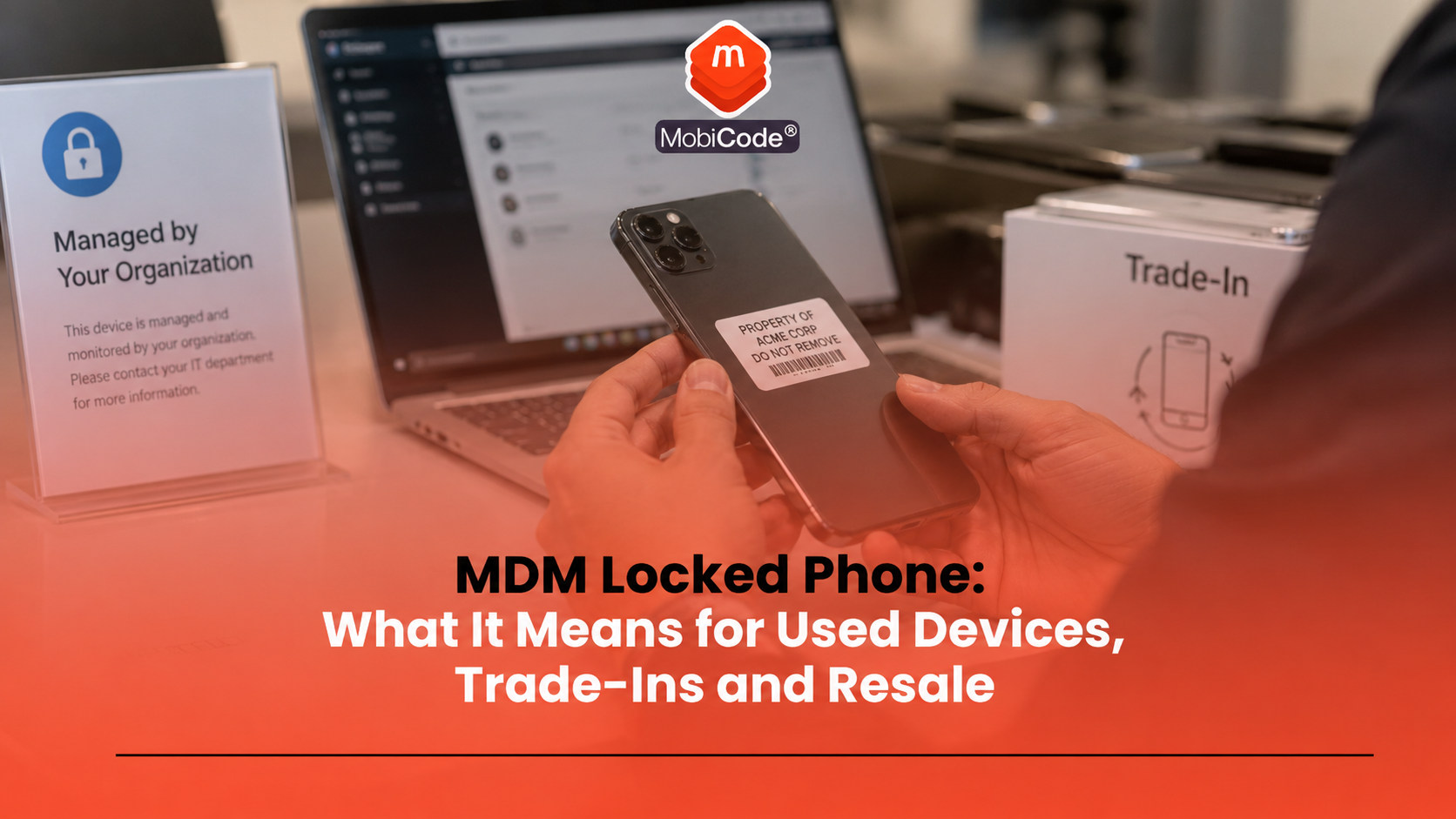
An MDM locked phone can create serious problems in a used-device workflow. A handset may look clean, power on normally and pass some basic tests, but still remain linked to an organisation’s mobile device management system.
For consumers, that can mean a second-hand phone shows a Remote Management screen, asks for company credentials, or cannot complete setup. For recyclers, refurbishers, ITAD providers, retailers and trade-in teams, an MDM locked phone can disrupt grading, resale, data-erasure workflows and customer confidence.
This guide explains what MDM means, why managed phones appear in the used-device market, how to spot possible MDM issues, what businesses should do with affected devices, and how MobiCode supports more controlled device-processing workflows.
What is an MDM locked phone?
An MDM locked phone is a mobile phone that remains connected to, restricted by, or enrolled in a mobile device management system. MDM stands for mobile device management.
Businesses, schools, public bodies and other organisations use MDM to manage devices at scale. An administrator can apply settings, install apps, enforce security rules, restrict features, wipe devices, retire devices and control how managed phones behave.
Apple explains that a device management service lets an administrator securely and remotely configure devices by sending configurations, profiles and commands. Android also supports device management modes that allow enterprise IT administrators to apply policies to enrolled managed devices.
Why MDM matters in the used-phone market
MDM matters because many used phones once belonged to businesses, schools, charities, government bodies, field teams or managed fleets. When those devices enter trade-in, refurbishment, ITAD or recycling channels, the management link may not always have been removed correctly.
That can create problems later in the workflow. A device may pass a visual check but fail when staff reset it. It may show a Remote Management screen during setup. It may ask for company credentials. Some features may remain restricted. In other cases, the issue only appears after the device has already moved through intake.
For used-device businesses, MDM is not just a technical annoyance. It can affect:
- trade-in acceptance;
- resale route;
- device grade;
- customer returns;
- supplier disputes;
- data-erasure confidence;
- audit records;
- stock value.
A strong intake process should treat MDM status as a device-risk factor, especially when processing ex-business stock.
MDM lock vs network lock
An MDM lock is not the same as a network lock.
A network lock limits which mobile networks a phone can use. A locked handset may reject SIM cards from other providers until the network restriction is removed.
An MDM lock relates to organisational management. The device may still connect to a company, school or enterprise management system. It may apply restrictions, ask for credentials, or re-enrol during setup.
A phone can be:
- network unlocked but still managed by MDM;
- network locked but not MDM managed;
- both network locked and MDM managed;
- free from both restrictions.
Trade teams should record these issues separately. Unlocking a network restriction does not remove an organisational management profile.
MDM lock vs Activation Lock
MDM also differs from Apple Activation Lock or Google account verification.
Activation Lock and account verification help stop unauthorised use after a device is lost, stolen or reset. They usually relate to the previous user’s personal Apple Account or Google account.
MDM relates to organisational control. A managed phone may belong to, or previously belonged to, a company, school or public-sector organisation. It may have restrictions that come from a management platform rather than a personal account.
Before resale, used-device businesses should check both:
- account or activation lock status;
- MDM, profile or remote-management status.
A device can pass one check and still fail the other.
How to spot possible MDM on iPhone
On iPhone, MDM may appear in several ways. The exact wording depends on the iOS version, enrolment type and organisation settings.
Common signs include:
- a Remote Management screen during setup;
- a message saying an organisation will configure the device;
- a management profile under VPN & Device Management;
- restricted settings or missing options;
- company apps that reinstall after reset;
- setup asking for organisation credentials.
Apple says users can see installed profiles by going to Settings, General, then VPN & Device Management. If no profiles appear, then no device management profiles are installed on the device.
That check helps, but it does not always answer every resale question. Some enrolment issues may appear during setup after reset, so trade teams should build MDM checks into the full workflow rather than relying only on one settings screen.
How to spot possible MDM on Android
Android devices can also belong to managed environments. Android supports enterprise management modes, including fully managed devices and dedicated devices used for specific business tasks.
Possible signs include:
- a work profile;
- an organisation-controlled device policy app;
- restricted settings;
- company apps or managed Play Store behaviour;
- messages that say the device belongs to an organisation;
- setup screens that require enterprise enrolment;
- limited ability to remove management controls.
Android menus vary by manufacturer. A Samsung, Pixel, Motorola or other Android device may present management settings differently.
For businesses handling mixed Android stock, staff should use a repeatable process rather than relying on memory or brand-specific assumptions.
Why ex-business devices often create MDM issues
Many MDM issues appear when organisations replace device fleets. A company may upgrade hundreds or thousands of staff phones, then send old devices into trade-in, ITAD, recycling or resale channels.
The process should remove corporate management before the phone leaves the organisation. In practice, mistakes can happen.
Common causes include:
- the device was not retired from the MDM platform;
- the organisation wiped the phone but did not release it correctly;
- the previous employee left without returning the device properly;
- the device came through a bulk channel with incomplete records;
- the reseller tested only cosmetic condition;
- the issue appeared only after factory reset.
For ITAD providers and recyclers, this makes intake discipline important. A managed device needs review before it moves into normal resale stock.
Can you remove an MDM lock?
Only the legitimate organisation, administrator or authorised owner should remove MDM from a managed device.
Avoid unofficial bypass tools or shortcuts. They can create legal, security, operational and resale risks. They may also leave the device in an unclear state, which is not suitable for a professional used-device workflow.
A legitimate resolution may involve:
- asking the original organisation to release the device;
- checking supplier paperwork;
- confirming ownership and disposal authority;
- retiring the device correctly from the MDM system;
- removing management profiles where authorised;
- routing the phone to review if release cannot be confirmed.
For trade teams, the safest rule is simple: if a device still appears managed and the organisation cannot release it properly, do not treat it as normal resale stock.
Why factory reset does not always solve MDM
A factory reset can erase local content and settings, but it may not remove organisational enrolment. Some managed devices can re-enrol during setup if the organisation has not released them properly.
That creates a common trade-in problem. A phone may look clear before reset, then show a Remote Management or organisation setup screen afterwards.
For this reason, a resale workflow should not treat factory reset as the whole answer. Teams should check for:
- device identity;
- account locks;
- MDM or remote-management indicators;
- network lock status;
- IMEI and blacklist indicators;
- functional test results;
- data-erasure records;
- final setup state.
MobiWIPE supports controlled data-erasure workflows, but erasure alone should not be confused with legitimate MDM release.
- Secure data erasure: MobiWIPE
MDM and data erasure
MDM and data erasure overlap, but they do not mean the same thing.
Data erasure deals with removing user or business data from the phone. MDM deals with organisational control, restrictions and enrolment. A phone may have no visible user data but still remain managed.
Professional device processors should record both:
- the data-erasure result;
- the device-management status.
Microsoft Intune, for example, includes actions such as retire, delete, remote lock and wipe. Its documentation explains that wipe restores a device to factory settings and removes data and settings, while retire removes company data and settings from a device.
Those distinctions matter. A retired device, a wiped device and a released device may not mean the same thing in every workflow. Staff should follow the organisation’s disposal process and record the outcome clearly.
Why MDM status matters before resale
MDM status can affect whether a phone can be sold, how it should be graded and whether a buyer can use it.
A managed phone may create problems such as:
- setup failure;
- restricted features;
- organisation login prompts;
- customer returns;
- marketplace complaints;
- supplier disputes;
- uncertain ownership position;
- lost processing time.
A device with unresolved MDM should not move into normal unlocked or fully working stock. It may need review, supplier query, return, release confirmation, parts routing or recycling, depending on the business policy.
How trade-in teams should handle MDM risk
Trade-in teams need a simple rule: do not discover MDM only after the device has been graded and listed.
A stronger workflow should include:
- capture IMEI, serial, make, model and storage;
- check account-lock status;
- check for visible management profiles or work profiles;
- reset or erase the device using the approved workflow;
- confirm that the device reaches a clean setup state;
- record any Remote Management or organisation prompts;
- route unclear devices for review;
- connect the final decision to the device record.
This avoids treating MDM as a one-off technician issue. It becomes part of the resale decision.
How ITAD providers should handle managed phones
ITAD providers often handle ex-business devices, so MDM should sit near the centre of their intake and disposal workflow.
A good ITAD process should ask:
- Did the client authorise disposal or resale?
- Does the asset list match the devices received?
- Has the client released the device from MDM?
- Can the phone complete setup without organisation credentials?
- Has data erasure completed and been recorded?
- Should the device go to resale, return, review, parts or recycling?
The National Cyber Security Centre advises people to erase personal data before selling, donating or trading in used devices. For businesses, the same idea needs stronger records, especially when devices come from managed fleets.
- Connected device processing: MobiONE
- Solutions for recyclers: MobiCode for Recyclers
How MDM affects device grading
MDM status should affect grading because it can change the commercial value and resale route of a phone.
A cosmetically excellent iPhone with unresolved Remote Management does not belong in the same grade as an unlocked, account-free, fully tested resale device. A clean-looking Android phone with enterprise enrolment may also need review before resale.
A grading process should separate:
- fully working and clear devices;
- devices needing network unlock review;
- devices with account-lock issues;
- devices with MDM or remote-management issues;
- devices suitable for repair;
- devices suitable for parts;
- devices suitable for recycling.
Clear routing reduces returns and protects buyer trust.
MDM status is not the only used-device check
MDM status matters, but it is only one part of the full workflow. A phone can have no management profile and still be faulty, blacklisted, network locked, account locked or poorly erased.
A complete used-device process should also include:
- IMEI and serial capture;
- lost, stolen and blacklist checks;
- network lock checks;
- account lock checks;
- screen, battery, camera and audio tests;
- NFC, Wi-Fi and Bluetooth checks where relevant;
- data-erasure records;
- final grading and routing.
MobiCHECK, MobiCode TEST, MobiWIPE and MobiONE each support a different part of that device-processing picture.

How MobiCode supports MDM-aware workflows
MobiCode helps businesses process used mobile devices with clearer checks, tests, wipe records and routing decisions.
- MobiONE: helps link checks, tests, wipe results and device records in one operational workflow.
See: MobiONE - MobiWIPE: supports controlled data-erasure workflows before devices move to resale, reuse or recycling.
See: MobiWIPE - MobiCHECK: helps teams check IMEI and device status before buying, processing or reselling stock.
See: MobiCHECK - MobiCode CHECK: supports broader used-device due diligence before devices move further through the business.
See: MobiCode CHECK - MobiCode TEST: helps teams run structured diagnostics and functional testing before resale.
See: MobiCode TEST - MobiUNLOCK: supports professional unlocking workflows where teams need to handle network restrictions.
See: MobiUNLOCK
MobiCode should not be presented as a tool for bypassing MDM. The value is better workflow control: identify issues, record outcomes, separate unclear stock, and link each device to the right decision.
Common mistakes with MDM locked phones
Most MDM problems come from treating managed phones like ordinary used phones.
Common mistakes include:
- checking only cosmetic condition;
- assuming factory reset removes MDM;
- confusing MDM with network lock;
- confusing MDM with Activation Lock;
- listing a device before completing setup checks;
- trying to bypass management controls;
- failing to ask the supplier for release evidence;
- not recording MDM review outcomes.
A proper workflow reduces these mistakes and gives staff a clear route when a managed device appears.
Commercial takeaway: MDM locked phone
An MDM locked phone can create real problems in used-device processing. It may still belong to, or remain linked with, an organisation’s device-management system. That can affect setup, resale, grading, erasure confidence and buyer satisfaction.
For consumers, an MDM issue can make a second-hand phone difficult or impossible to use normally. For recyclers, refurbishers, ITAD providers and trade-in teams, it should trigger review rather than ordinary resale.
The safest approach is to confirm legitimate release, avoid bypass tools, record the outcome and connect MDM status with the wider device workflow. MobiCode supports that broader workflow through device checks, diagnostics, erasure, unlocking support and connected processing records.
A practical example for an ITAD batch
An ITAD provider receives 300 ex-company iPhones and Android phones from a business client. The devices look clean and most power on, but several show management prompts during setup.
Instead of listing them as normal resale stock, the team captures each IMEI and serial number, runs device-status checks, checks account-lock position, completes the approved erasure workflow and records which phones still show MDM or organisation prompts.
The provider asks the client to release the affected devices from its management system. Phones with confirmed release move back into testing and grading. Devices that remain unclear move into review, return or alternative routing.
FAQ: MDM locked phone
What is an MDM locked phone?
An MDM locked phone is a device that still has management settings, restrictions or enrolment linked to an organisation such as a business, school or public-sector body.
What does MDM stand for?
MDM stands for mobile device management. Organisations use it to manage phones, tablets and other devices by applying settings, policies, apps and remote actions.
Is MDM the same as network lock?
No. A network lock controls which mobile networks a phone can use. MDM relates to organisational management, restrictions and enrolment.
Does factory reset remove MDM?
Not always. A factory reset may remove local data and settings, but some managed devices can re-enrol or show Remote Management during setup if the organisation has not released them properly.
Can MDM be removed from a used phone?
Only the legitimate organisation, administrator or authorised owner should remove MDM. Used-device businesses should avoid bypass tools and route unclear devices for review.
Why does MDM matter before resale?
MDM matters because a managed phone may fail setup, ask for organisation credentials, apply restrictions or create returns. Trade teams should check and record MDM status before resale.
References and Further Reading
- Apple Support: Intro to device management profiles
- Apple Support: Install or remove configuration profiles on iPhone
- Android Open Source Project: Device management overview
- Android Enterprise: Mobile device management solutions
- Microsoft Intune: Device actions
- NCSC: Buying and selling second-hand devices
- MobiONE
- MobiWIPE
- MobiCHECK
- MobiCode CHECK
- MobiCode TEST
- MobiUNLOCK
- MobiCode for Recyclers