

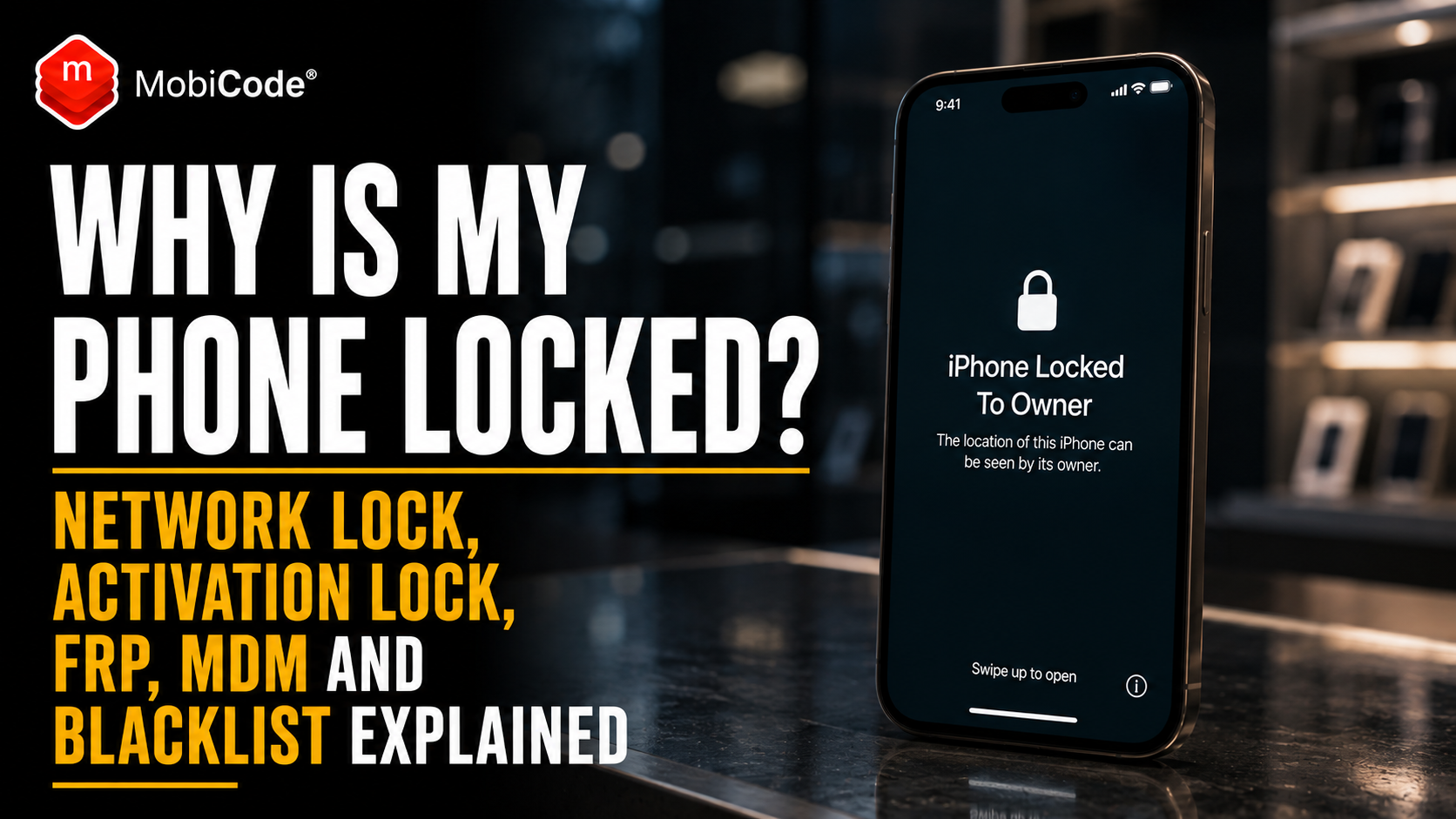
Why Is My Phone Locked? Network Lock, Activation Lock, FRP, MDM and Blacklist Explained
A phone locked message does not always describe the same problem. Sometimes the device needs a screen PIN. In other cases, the SIM requires a PUK code, the handset only accepts one mobile network, or an Apple, Google or business account still controls it.
Alternatively, the phone may be described as blocked or blacklisted. This is different because the device’s IMEI may have been flagged, preventing normal access to participating mobile networks.
These distinctions matter because each restriction needs a different solution. For example, a factory reset may remove a local screen PIN, yet it can trigger Android Factory Reset Protection. Similarly, replacing the SIM will not remove Apple Activation Lock. Meanwhile, network unlocking will not clear a blacklisted IMEI.
For private buyers and phone shops, identifying the exact restriction before paying is essential. Some locks can be removed legitimately by the owner or mobile provider. However, others require a previous employer, school or organisation to release the handset.
This guide explains the seven restrictions most commonly described as a locked phone. In addition, it shows how to tell them apart and what UK phone shops should check before buying, resetting or reselling a device.
What does “phone locked” mean?
In everyday conversation, a locked phone is any handset that will not let someone complete the action they expect.
However, different restrictions protect different parts of the phone, account or mobile service.
What might the lock protect?
Depending on the message, the restriction may protect or control:
- personal data belonging to the current user;
- a physical SIM card or mobile subscription;
- access to a particular mobile network;
- an Apple Account belonging to the previous owner;
- previously linked Google Account credentials;
- management rights held by a business or school;
- participating networks from a flagged device.
The seven different types of phone lock
First, use the comparisons below to identify which restriction most closely matches the message shown on the device.
Locks affecting access, the SIM or mobile provider
Locks affecting ownership, management or IMEI status
1. Screen lock: PIN, password, pattern or biometrics
A screen lock protects access to the phone’s active setup and personal data.
Depending on the handset, it may use:
- a numeric PIN;
- an alphanumeric password;
- an Android pattern;
- fingerprint recognition;
- facial recognition;
- combined biometric and passcode security.
Usually, this is the first restriction someone sees when waking the phone. Importantly, it does not automatically mean that the handset is network locked, blacklisted or tied to an organisation.
What should a used-phone buyer do?
First, ask the seller to unlock the active screen while you are present. Afterwards, open Settings and confirm the model, storage, serial number and IMEI.
Before payment, the buyer should also be able to:
- test all important phone functions;
- review accounts installed on the device;
- confirm that the seller controls the handset;
- observe the correct account-removal process.
By contrast, “I have forgotten the code” should not be treated as a minor problem. The seller may be unable to demonstrate control of the handset or remove the account protection that appears after erasure.
Will a factory reset remove the screen lock?
A reset may remove the local PIN or pattern by erasing the phone. Nevertheless, it does not prove that the person resetting it is the authorised owner.
Afterwards, an iPhone may show Activation Lock. Similarly, an Android handset may trigger Factory Reset Protection. Organisation-managed equipment could also return to Remote Management during setup.
Therefore, a factory reset is not a universal unlocking method.
2. SIM PIN and PUK lock
A SIM PIN protects the SIM card rather than the handset itself.
When enabled, the phone may request the code after:
- restarting the handset;
- moving the SIM into another phone;
- switching the mobile line back on;
- changing certain SIM settings.
If someone enters the wrong SIM PIN repeatedly, the card may then request a PUK, or Personal Unblocking Key.
Is a SIM lock the same as a network lock?
Not necessarily. The phrase “SIM locked” is used inconsistently, so the exact screen message matters.
For example, it might refer to:
- a PIN-protected SIM;
- provider restrictions affecting the handset;
- an unsupported-SIM warning;
- a request for a network unlock code.
Consequently, staff should record the wording shown on the screen before choosing a solution.
Will changing the SIM fix it?
Changing the SIM may help when the original card is damaged, inactive or PUK blocked. However, it will not remove a carrier restriction, Activation Lock, FRP, MDM enrolment or an IMEI block.
3. Network lock or carrier lock
A network-locked phone is restricted to one mobile provider or carrier.
For instance, a handset supplied for one network may reject another provider’s compatible SIM until the restriction is removed.
What messages indicate a network lock?
Common messages include:
- SIM not supported;
- network locked;
- enter network unlock code;
- SIM network unlock PIN;
- invalid SIM;
- carrier lock.
Ofcom banned UK mobile companies from selling locked handsets from 17 December 2021. As a result, many newer phones supplied directly by UK mobile providers should already be unlocked.
Even so, phone shops may still receive older UK handsets, imported devices, international models and stock with an uncertain supply history.
How can you check whether a phone is network locked?
Several practical checks are available.
- First, look for carrier-lock information in Settings.
- Next, insert a known-working SIM from another provider.
- Then restart the handset and allow time for registration.
- Afterwards, look for an unlock-code request or unsupported-SIM message.
- Finally, ask the original provider to confirm the status where necessary.
On supported iPhones, the About page may show a Carrier Lock or Network Provider Lock field. However, wording can vary by region and software version.
Does a factory reset remove a network lock?
No. A factory reset removes user data and settings, but it does not normally remove the carrier restriction.
Likewise, changing the SIM, Apple Account or Google Account will not unlock the network. Checking the IMEI does not remove the restriction either.
How is a network lock removed?
The correct process depends on the model and original provider. It may involve a network unlock code, a provider-side update or an authorised professional unlocking workflow.
For professional device businesses, MobiUNLOCK supports legitimate network-unlocking processes.
- Professional mobile unlocking: MobiUNLOCK
4. Apple Activation Lock
Apple Activation Lock is linked to Find My and the previous owner’s Apple Account.
Designed to prevent unauthorised activation of a lost or stolen iPhone or iPad, the feature switches on automatically when Find My is enabled.
How do you recognise Activation Lock?
A protected device may display:
- iPhone Locked to Owner;
- Activation Lock;
- requests for a previous owner’s Apple Account;
- partly hidden email details during activation.
Notably, the phone may still appear to have been factory reset. A clean setup screen does not prove that the handset is ready for a new owner.
Does erasing an iPhone remove Activation Lock?
No. Activation Lock is specifically designed to remain after erasure.
Therefore, an iPhone can contain no visible user data and still be unusable by the next buyer. Changing the SIM or attempting another factory reset will not solve the account restriction.
Who can remove Activation Lock?
Legitimate routes may include:
- credential entry by the linked owner;
- remote removal through Find My;
- release by an authorised organisation;
- support from Apple when acceptable purchase evidence exists.
Phone shops should not provide unofficial bypass services. Similarly, screenshots that cannot be connected reliably to the physical handset should not be accepted as proof of release.
What should a seller do before trade-in?
Before handing over the phone, the seller should back up their data, sign out correctly, disable Find My through the authorised process and erase the device.
Finally, the buyer or shop should connect the iPhone to the internet and confirm that clean activation is possible.
5. Android Factory Reset Protection
Factory Reset Protection, usually shortened to FRP, helps prevent unauthorised reuse of an Android phone after a reset.
If the handset is reset in a way Android treats as unauthorised, setup may require a previously synced Google Account, the former screen PIN or authorised enterprise credentials.
What does an FRP-locked phone display?
Common messages include:
- Verify your account;
- This device was reset;
- Sign in with a previously synced Google Account;
- Enter the previous PIN;
- Device locked following an unauthorised reset.
Why does FRP appear after a factory reset?
That is part of the feature’s purpose. Without FRP, someone who obtained a locked Android phone could erase it and set it up as a new device.
As a result, “factory reset” and “resale ready” are not the same thing.
How should an Android owner prepare the phone?
Before resetting the handset, the authorised owner should:
- unlock the active screen;
- back up important data;
- remove personal Google Accounts through Settings;
- sign out of manufacturer accounts where applicable;
- delete work profiles or organisational enrolment;
- complete the reset through the normal settings process;
- confirm that setup does not request previous credentials.
The exact sequence may differ by manufacturer and Android version. Nevertheless, the owner should complete the release before the phone changes hands.
Can a phone shop bypass FRP?
A legitimate phone shop should not use unauthorised FRP bypass methods.
Instead, the handset should be returned to the seller, previous owner or managing organisation. If the authorised party cannot release it, the device should not enter normal resale stock.
6. MDM lock or Remote Management
MDM stands for mobile device management.
Businesses, schools and public bodies use management platforms to install apps, apply security rules, restrict functions and erase devices remotely.
How can you identify an MDM-managed phone?
Possible signs include:
- Remote Management during Apple setup;
- a “managed by your organisation” notice;
- an organisation sign-in page;
- a visible work profile;
- restricted device settings;
- apps that cannot be removed;
- company names or branding;
- mandatory enrolment during setup.
Initially, an MDM-controlled phone may appear normal. However, the restriction can emerge after a reset or once the handset connects to the internet.
Does a factory reset remove MDM?
Not reliably. A local profile may disappear, yet automated organisational enrolment can return during setup.
For example, the phone may reconnect to its former employer’s system and display Remote Management. Therefore, inspecting only the home screen is not enough.
Who can release an MDM-managed phone?
Usually, the organisation’s authorised administrator must retire or release the device properly.
This may involve removing it from:
- an organisation’s MDM platform;
- Apple Business Manager or Apple School Manager;
- Android enterprise enrolment;
- zero-touch deployment;
- another automated provisioning service.
Accordingly, a seller should provide evidence that the organisation authorised the disposal and removed the device assignment.
Why does MDM matter to phone shops?
An unresolved MDM phone may become restricted, remotely wiped or forced back into enrolment after resale.
For that reason, shops should complete an internet-connected setup test before valuing the handset as clear stock.
7. IMEI blacklist or network block
A blacklisted or blocklisted phone is not locked in the same way as a passcode-protected handset.
Instead, its IMEI has been flagged in relevant device-status systems. Consequently, participating mobile networks may deny normal cellular service.
Why might an IMEI be blocked?
A handset may have been:
- reported as lost;
- declared stolen;
- linked to an insurance claim;
- flagged by a network or commercial owner;
- recorded as unsuitable for normal network use.
What symptoms can a blocked phone show?
Possible symptoms include:
- no service;
- SOS only;
- emergency calls only;
- failed mobile-network registration;
- several working SIM cards failing in one handset.
However, coverage, SIM, account and hardware problems can produce similar messages. Therefore, the status bar alone cannot confirm that an IMEI is blacklisted.
How do you check an IMEI?
First, find the identifier reported by the phone itself.
Common methods include:
- dialling *#06#;
- opening device information in Settings;
- using the setup information screen;
- reviewing physical identifiers where supported.
For a single handset, check the IMEI with MyMobiCheck before buying or accepting it.
Meanwhile, phone shops, refurbishers, recyclers and trade-in businesses can use MobiCHECK within a professional checking workflow.
Does network unlocking clear a blacklist?
No. A network unlock changes which compatible providers the handset can use.
By contrast, it does not remove a lost, stolen or blocked-status record attached to the IMEI. Similarly, a factory reset, new SIM, new user account or replacement screen will not clear the status.
Can an incorrect block be investigated?
The reporting provider or authorised source may be able to review an incorrect or outdated record.
However, a phone shop should never promise that the device can be cleared. Instead, the seller or owner should contact the organisation responsible for the report.
Network lock vs blacklist
These two issues are frequently confused, although they affect different parts of the phone.
Network lock: the phone is restricted to a particular carrier but may work normally with an accepted SIM.
IMEI blacklist: participating networks may refuse service because the device identifier has been flagged.
A network-locked phone may be legitimate and suitable for authorised unlocking. By contrast, a blacklisted handset raises a device-status concern that must be resolved with the relevant reporting organisation.
Screen lock vs Activation Lock
A screen lock protects the phone’s current active setup. Activation Lock, however, protects the Apple device’s ability to be activated again after erasure.
Consequently:
- screen access does not remove Activation Lock;
- erasure can leave an iPhone locked to its owner;
- buyers need both inspection access and proper account removal;
- knowledge of a passcode does not prove ownership.
Screen lock vs Android FRP
An Android screen lock protects access while the phone remains set up. FRP, on the other hand, normally becomes relevant after a reset.
As a result, someone may erase the local screen lock only to encounter a previous Google Account request during setup.
Therefore, resetting a locked Android phone without the authorised owner can make the commercial position worse rather than better.
FRP vs MDM
FRP normally relates to previous Google Account or screen-lock verification after a reset. MDM, meanwhile, relates to organisational management.
A used Android device may have:
- FRP without business management;
- enterprise enrolment without personal FRP;
- a managed work profile;
- enterprise-controlled Factory Reset Protection;
- both account and management concerns;
- no remaining restriction after proper release.
Therefore, the correct solution depends on whether the authorised party is an individual owner or an organisation.
What does “unlocked phone” actually mean?
In most sales listings, “unlocked” means the handset is not restricted to one mobile network.
However, it does not automatically mean that the phone is:
- free from Activation Lock;
- clear of Android FRP;
- released from MDM;
- clear of blacklist indicators;
- fully paid for;
- functionally tested;
- securely erased;
- owned by the seller.
Consequently, a listing that says “unlocked” usually answers only the carrier-lock question.
Why a factory reset does not fix every locked phone
A factory reset removes user data and restores default settings. Even so, it does not rewrite every status attached to the handset.
For example, a reset does not normally remove:
- carrier restrictions;
- Apple Activation Lock;
- Android Factory Reset Protection;
- automated MDM enrolment;
- IMEI blacklist records;
- provider-side account blocks;
- physical hardware faults.
In addition, resetting too early may remove useful evidence, including the original message, eSIM information, network settings and work-profile details.
Therefore, phone shops should identify the restriction and record the device before erasure.
Can a phone have more than one lock?
Yes. In fact, several restrictions can exist at the same time.
For example, an iPhone may have a screen passcode, Activation Lock, a carrier restriction, MDM enrolment and a blocked IMEI.
Similarly, an Android phone may combine a screen PIN, SIM PIN, network lock, FRP, enterprise management and a blacklisted IMEI.
Consequently, resolving one restriction does not automatically clear the others.
Locked-phone checklist for private buyers
- First, ask the seller to unlock the active screen.
- Next, confirm the exact make, model and storage.
- Record IMEI 1 and IMEI 2 where available.
- Run an appropriate IMEI and device-status check.
- Test a compatible SIM from another network where relevant.
- Look for carrier-lock messages.
- Require proper removal of Apple or Google accounts.
- Review work profiles, MDM and Remote Management.
- Reset the phone only through an authorised handover process.
- Connect the device to the internet during setup.
- Confirm that no previous-owner or management screen returns.
- Finally, test the handset fully before paying.
Locked-phone checklist for phone shops
A phone shop needs a repeatable process because staff may encounter several restrictions within the same batch of devices.
Before payment
- Capture the IMEI, serial number, model and storage.
- Record the exact message displayed.
- Confirm whether the active screen can be unlocked.
- Review carrier and network-lock status.
- Run appropriate device-status checks.
- Inspect Apple, Google and manufacturer accounts.
- Look for work profiles and MDM controls.
- Establish the seller’s authority to dispose of the phone.
During release and erasure
- Request removal of accounts by the authorised seller.
- Delete personal eSIM profiles where appropriate.
- Verify that organisational management has been released.
- Erase the phone through the approved workflow.
- Connect it to the internet during setup.
- Make sure FRP, Activation Lock or MDM does not return.
Before resale
- Repeat identity and status checks where required.
- Test all relevant phone functions.
- Document network-lock status accurately.
- Complete controlled data erasure.
- Assign the correct grade and resale route.
When should a phone shop reject the device?
A shop should normally pause or reject a purchase when:
- screen access cannot be demonstrated by the seller;
- Apple or Google accounts remain attached;
- Activation Lock appears after erasure;
- FRP requests unknown previous credentials;
- Remote Management returns during setup;
- organisational disposal has not been authorised;
- IMEI checks show an unresolved status concern;
- device identifiers do not match the physical phone;
- seller explanations become inconsistent;
- full inspection cannot be completed.
Ultimately, a low buying price does not remove the ownership, compliance or customer-risk problem.
How different locks affect a phone’s value
Not all restrictions have the same commercial effect.
- Screen lock: prevents full inspection and raises questions about seller control.
- SIM PIN: usually affects the SIM rather than the handset’s value.
- Network lock: can reduce the potential customer market.
- Activation Lock: prevents normal resale until the authorised owner removes it.
- FRP: stops Android setup until authorised verification is completed.
- MDM: may return after reset and indicate unauthorised disposal.
- IMEI blacklist: can prevent normal cellular use and create a serious status concern.
Therefore, a trade-in offer should reflect the phone’s current verified state rather than the seller’s promise that a restriction will be removed later.
How MobiCode supports locked-phone checks
MobiCode helps private buyers and professional device businesses separate the different risks commonly described as a locked phone.
-
MyMobiCheck supports individual IMEI checks before buying or selling a handset.
See: MyMobiCheck -
MobiCHECK supports professional IMEI and device-status checks before a phone enters resale stock.
See: MobiCHECK -
MobiUNLOCK supports legitimate professional network-unlocking workflows.
See: MobiUNLOCK -
MobiONE connects identifiers, checks, tests, erasure and device-routing records.
See: MobiONE -
MobiCode TEST helps teams check device functions once setup and access issues have been resolved.
See: MobiCode TEST -
MobiWIPE supports controlled data erasure before accepted devices return to use or resale.
See: MobiWIPE -
MobiCode CHECK supports broader due diligence where a handset needs further review.
See: MobiCode CHECK
The aim is not to label every restricted handset as stolen or unusable. Instead, the goal is to identify the exact issue, establish who has authority to resolve it and prevent unresolved devices from reaching customers.

Common mistakes with locked phones
- Assuming every locked phone needs a network unlock.
- Resetting an Android phone and triggering FRP.
- Believing an erased iPhone has no Activation Lock.
- Confusing a SIM PIN with a carrier restriction.
- Treating “unlocked” as proof of ownership and blacklist status.
- Trying a new SIM to fix an Apple or Google account lock.
- Expecting carrier unlocking to clear an IMEI blacklist.
- Removing an MDM profile without checking automated enrolment.
- Buying the phone before account removal is complete.
- Accepting promises of release after the transaction.
- Erasing the phone before recording its IMEI and restriction.
- Using unofficial bypass methods instead of authorised routes.
Commercial takeaway
When a phone is locked, the first question should not be “How do I bypass it?” Instead, ask: “Which type of lock is this?”
A screen PIN, SIM PUK, network lock, Activation Lock, Android FRP, MDM restriction and IMEI blacklist all control different parts of the device journey.
Accordingly, the correct response depends on the restriction. An authorised user handles the screen lock, while the mobile provider deals with SIM and carrier issues. Meanwhile, the linked owner must remove Apple or Google protection, and the former organisation must release MDM-managed equipment.
For phone shops, the safest approach is to identify every restriction before paying. In addition, staff should record the IMEI, require authorised release and confirm clean internet-connected setup before resale.
Ultimately, this process protects the previous owner, the business and the next customer.
A practical locked-phone example
A customer offers an Android phone to a UK shop and says that it is “SIM locked”. Because the handset displays a normal home screen, staff initially suspect a network restriction.
First, the technician inserts a known-working SIM from another provider. Successful network registration proves that the device is not carrier locked.
Next, staff ask the customer to remove their Google Account and erase the device. During setup, however, an organisation enrolment screen appears and requests company credentials.
The handset was not SIM locked at all. Instead, it remained assigned to a former employer’s device-management system.
Consequently, the shop pauses the purchase and asks the customer to obtain formal release from the organisation. Staff do not attempt to bypass the management screen or value the phone as resale-ready stock.
By identifying the exact restriction, the business avoids buying a device that could later become remotely controlled, restricted or wiped.
Frequently asked questions
Why is my phone locked?
Several restrictions can make a phone appear locked, including a screen PIN, SIM PIN, network restriction, Apple Activation Lock, Android FRP, MDM management or IMEI block. Therefore, read the exact message before deciding which issue applies.
What does a network-locked phone mean?
Network-locked phones are restricted to particular mobile providers. As a result, another provider’s compatible SIM may be rejected until the network or an authorised process removes the restriction.
Does a factory reset unlock a phone?
Resetting may erase a local screen lock. However, it does not normally remove a carrier lock, Activation Lock, Android FRP, automated MDM enrolment or IMEI blacklist. In fact, additional ownership verification may appear afterwards.
Is an unlocked phone the same as a blacklist-clear phone?
No. “Unlocked” normally means the handset is not restricted to one carrier. By contrast, a separate IMEI check is needed to review lost, stolen, blocked or blacklist indicators.
What is the difference between Activation Lock and FRP?
Activation Lock protects Apple devices through Find My and the linked Apple Account. Meanwhile, FRP protects Android devices by requiring previous authorised credentials after certain factory resets.
Can a factory reset remove MDM?
Not reliably. Although a local profile may disappear, automated organisational enrolment can return during setup. Therefore, the authorised organisation should release the phone from its management systems.
Can a phone have several locks at once?
Yes. Multiple restrictions can affect the screen, network, user account, organisational management and IMEI simultaneously. Consequently, resolving one issue does not automatically clear the others.
Should I buy a phone that is still locked?
Do not pay until the exact restriction has been identified. Instead, require the authorised seller, mobile provider or organisation to remove it and confirm that the device completes a clean internet-connected setup.
References and further reading
- Ofcom: UK mobile companies banned from selling locked handsets
- Apple Support: Activation Lock for iPhone and iPad
- Apple Support: How to remove Activation Lock
- Apple Support: Remove a device through Find Devices
- Google Android Help: Prevent unauthorised use after a reset
- Google Android Help: Reset an Android device
- Google: Enterprise Factory Reset Protection
- Google Developers: Android device management
- Apple: Introduction to device-management services
- Apple Support: Configuration profiles and device management
- GSMA Device Check: IMEI block-list FAQs
- MyMobiCheck: Single-device IMEI checking
- MobiCHECK
- MobiUNLOCK
- MobiONE
- MobiCode TEST
- MobiWIPE
- MobiCode CHECK