

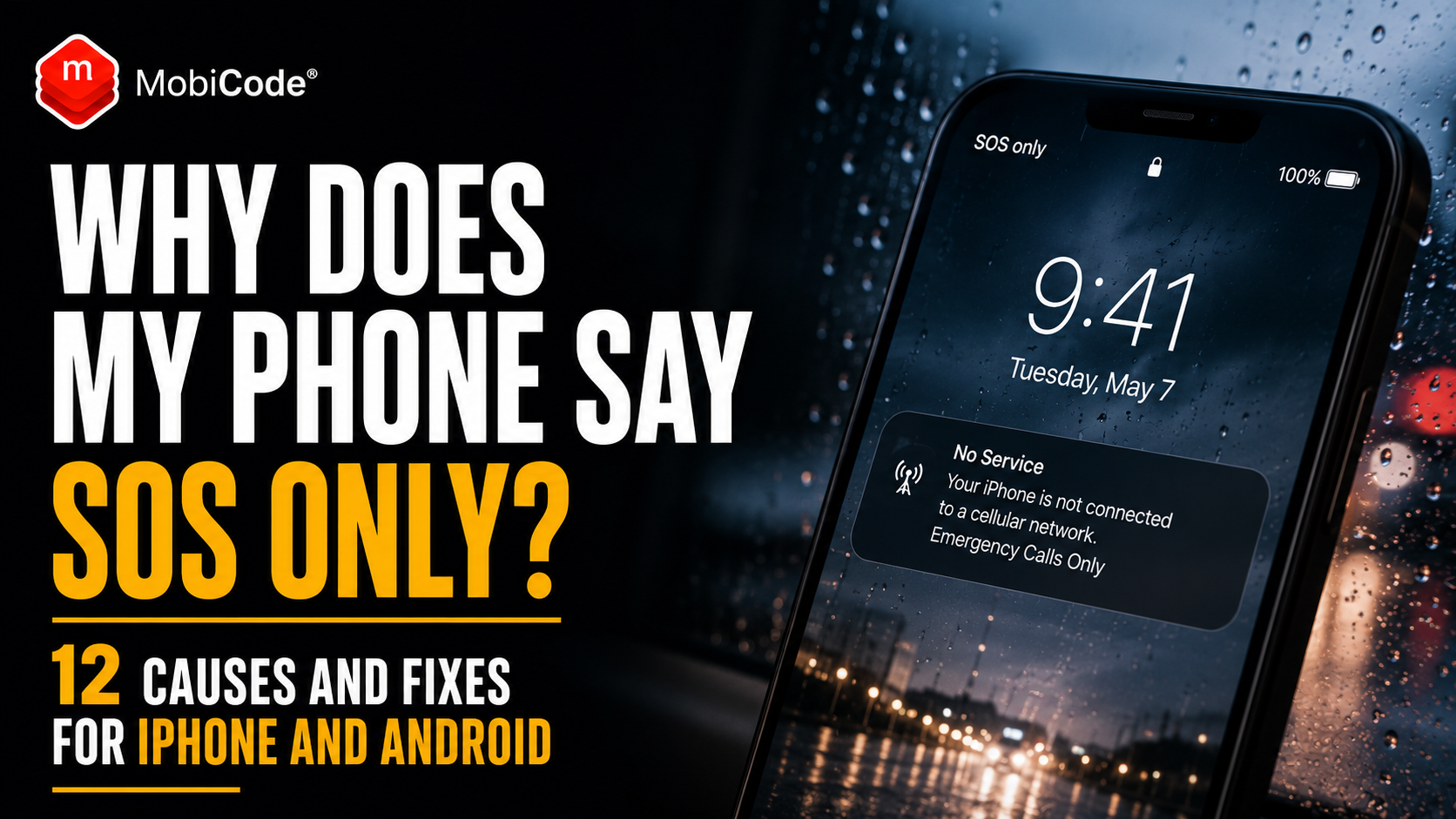
A phone that says SOS only or emergency calls only is not connected normally to your mobile network. It may still be able to reach an emergency service through another available network, but ordinary calls, texts and mobile data may not work.
The cause is not always a broken phone. Temporary loss of coverage, a network outage, an inactive SIM, an eSIM setting, an account problem or a software issue can all produce the same message.
However, the warning can also appear on a used phone with a network restriction, blocked IMEI or damaged mobile-network hardware. That makes it particularly important for phone shops, repair centres and second-hand buyers to diagnose the cause before purchasing, repairing or reselling the handset.
This guide explains what SOS only means, the checks to complete in the right order and when the problem may require help from the mobile provider or a professional repair technician.
What does SOS only mean on a phone?
SOS only usually means that the handset cannot register normally with the customer’s mobile provider.
On an iPhone, Apple explains that “SOS”, “No Service” or “Searching” means the device is not connected to a mobile network. Where supported, SOS only may indicate that emergency calls could still be routed through another available provider.
Android phones may show similar messages, including:
- Emergency calls only;
- No service;
- Mobile network unavailable;
- Not registered on network;
- No SIM;
- Invalid SIM.
The wording varies by manufacturer, software version, network and country. Nevertheless, the central problem is the same: the phone does not currently have normal cellular service.
Is SOS only the same as Emergency SOS?
No. These terms can describe different things.
SOS only is a mobile-network status. It means normal service from the selected provider is unavailable.
Emergency SOS is a safety feature that can help a user contact emergency services, alert emergency contacts or use satellite-based support on compatible devices and in supported locations.
A phone can display SOS only without the user activating an Emergency SOS feature.
Why does my phone say SOS only?
The most common explanations are:
- poor or unavailable mobile coverage;
- a temporary network outage;
- an inactive, suspended or incorrectly provisioned account;
- a loose, damaged or unsupported physical SIM;
- an eSIM that is disabled, deleted or not activated;
- the wrong line selected on a dual-SIM phone;
- a network-provider settings or software problem;
- an incorrect manual network selection;
- a network-locked phone being used with an unsupported provider;
- a blocked or barred IMEI;
- limited compatibility with the available network;
- damage to the antenna, SIM reader, modem or logic board.
Several causes produce an identical message. Therefore, work through the checks methodically rather than assuming the handset is blacklisted or broken.
1. Check whether there is mobile coverage
Start with the simplest explanation.
Mobile service may be weak or unavailable inside:
- basements;
- underground car parks;
- lifts;
- large buildings;
- remote rural areas;
- valleys;
- trains or fast-moving vehicles;
- areas affected by maintenance or an outage.
Move outdoors or to another location and check again.
Also ask whether other customers on the same network have service. If several phones have lost signal at once, the problem is more likely to involve local coverage or a provider outage than the individual handset.
UK users can check predicted local coverage using Ofcom’s mobile coverage checker. However, predicted coverage does not guarantee perfect reception inside every building.
2. Turn Airplane Mode on and off
Airplane Mode temporarily disconnects the phone from its mobile network. Turning it off again forces the device to attempt a new connection.
On an iPhone:
- Open Settings.
- Turn Airplane Mode on.
- Wait at least 15 seconds.
- Turn Airplane Mode off.
- Wait for the phone to reconnect.
On Android, swipe down to the Quick Settings panel, switch Airplane Mode on, wait briefly and switch it off again.
This will not fix a blocked IMEI, inactive account or damaged antenna. However, it can resolve a temporary registration problem.
3. Restart the phone
A restart clears temporary network and software errors.
After restarting, give the phone a minute or two to:
- recognise the SIM;
- load the eSIM profile;
- find an available network;
- register with the provider;
- display the correct signal status.
If normal service returns but disappears repeatedly, continue investigating. An intermittent connection may indicate a damaged SIM, poor coverage, software fault or hardware issue.
4. Check the mobile account and network status
The phone may work correctly while the customer’s service is inactive.
Contact the mobile provider or check its app to confirm:
- the account is active;
- the bill has been paid;
- the SIM has been activated;
- the number has not been suspended;
- the pay-as-you-go service has not expired;
- the provider has no local outage;
- the correct plan is attached to the device;
- the phone has not been barred by the provider.
Only the network provider can fully inspect and change the customer’s account and service provisioning.
5. Remove and inspect the physical SIM
Switch the phone off before removing the physical SIM unless the manufacturer states otherwise.
Check whether:
- the SIM is inserted in the correct position;
- the card fits the tray correctly;
- the SIM is cracked or badly scratched;
- the tray is bent;
- the tray belongs to the correct model;
- dust or debris is preventing contact;
- the phone recognises the SIM after reinsertion.
Do not scrape the SIM contacts or insert objects into the SIM reader.
If possible, test the SIM in another compatible phone. You can also insert a known-working SIM into the affected device.
If the customer’s SIM fails in two phones: the SIM or account is probably the stronger suspect.
If several known-working SIMs fail in one phone: investigate the handset, network lock, IMEI status or hardware.
6. Check the eSIM and mobile line
On an eSIM-enabled phone, the physical SIM tray may be empty even though the device should have an active mobile service.
Open the mobile-network settings and check that:
- the expected eSIM profile appears;
- the line is switched on;
- the correct line is selected for calls and mobile data;
- the profile completed activation;
- the customer did not delete the eSIM accidentally;
- the provider did not transfer the plan to another handset;
- the device has internet access if activation requires it.
If the profile is missing, the network may need to issue a new eSIM or activation code.
Deleting and re-adding an eSIM unnecessarily can leave the customer without service. Contact the provider before removing an active profile when the correct recovery process is unclear.
7. Check both lines on a dual-SIM phone
A dual-SIM phone may contain:
- two physical SIMs;
- one physical SIM and one eSIM;
- two active eSIM lines;
- several stored profiles with only one or two enabled.
One line may show SOS only while the other works normally.
Confirm:
- which number the customer is trying to use;
- whether that line is enabled;
- which line handles calls;
- which line handles mobile data;
- whether both IMEIs have been recorded;
- whether the correct provider appears beside each line.
Do not confuse IMEI 1 and IMEI 2 with evidence that the phone’s identity has been altered. Dual-SIM devices can legitimately have two IMEI numbers.
8. Check for software and network-provider updates
Mobile providers sometimes issue settings updates that help a phone connect correctly to their network.
On an iPhone:
- Connect to Wi-Fi.
- Open Settings.
- Choose General.
- Choose About.
- Install a provider-settings update if prompted.
Also install supported operating-system updates where appropriate.
On Android, check for:
- system updates;
- Google Play system updates;
- manufacturer updates;
- provider configuration updates;
- pending restarts.
Back up important data before major software work.
9. Check automatic network selection
A phone may fail to connect if it is set manually to the wrong provider.
Open the mobile-network settings and check whether network selection is set to automatic.
If manual selection is required for troubleshooting:
- search for available networks;
- select the customer’s correct provider;
- wait for registration;
- note any error message;
- return the setting to automatic when appropriate.
A message such as “forbidden”, “unable to connect” or “not registered” can help the provider or technician narrow down the cause.
10. Check whether the phone is network locked
A network-locked phone may accept service only from the original provider or an approved related network.
If a customer inserts an unsupported SIM, the phone may show:
- SIM not supported;
- invalid SIM;
- network locked;
- SIM network unlock PIN;
- no normal service;
- emergency calls only.
The exact message varies.
Ask:
- Which provider originally supplied the phone?
- Has the handset ever worked with the current SIM?
- Does a SIM from the original provider work?
- Does the device settings page show a SIM restriction?
- Has the provider confirmed that the phone is unlocked?
Network unlocking is different from changing the IMEI. A legitimate unlock removes a provider restriction without altering the phone’s unique device identity.
- Professional network-unlocking workflows: MobiUNLOCK
11. Check whether the IMEI is blocked or barred
A mobile provider may block a phone’s IMEI after it is reported lost or stolen. Devices may also be barred for other provider-specific reasons.
When the handset attempts to connect, a participating network may deny normal service if the IMEI appears on a relevant block list.
The phone may then show no service, SOS only or another registration error. However, the exact screen message is not enough to prove that the IMEI is blocked.
Find the IMEI by:
- dialling *#06#;
- opening the phone’s device-information settings;
- checking the setup information screen;
- reviewing the original packaging, while confirming that it belongs to the same handset.
For an individual phone, use MyMobiCheck to check the device’s IMEI before buying or accepting it as a trade-in.
Phone shops, recyclers and higher-volume businesses can use MobiCHECK within a professional device-checking workflow.
Can a blacklisted phone say SOS only?
Yes, a blocked handset may be unable to register normally and could display SOS only, no service or a similar warning.
However, the message can also result from ordinary coverage, SIM, account or hardware problems.
Do not declare a phone blacklisted based only on the status-bar message. Check the IMEI through an appropriate service and contact the network provider where necessary.
Can a phone become blocked after you buy it?
A used phone may pass an initial check and be reported lost or stolen later.
For example:
- the seller may report it after completing the sale;
- an insurer may process a later claim;
- a business may discover that an asset was disposed of without authority;
- a device may be linked to an unresolved finance or provider issue;
- status information may take time to reach participating systems.
This is one reason phone shops should keep:
- the seller’s transaction record;
- the IMEI checked at intake;
- the date and result of the check;
- proof of purchase or authority where relevant;
- the final customer-sale record.
12. Consider a hardware problem
If the provider confirms that the account and IMEI are clear, and several known-working SIMs fail in the same device, the handset may have a hardware fault.
Possible causes include:
- a damaged SIM reader;
- a bent or incorrect SIM tray;
- a loose antenna connection;
- antenna damage after a drop;
- liquid damage or corrosion;
- a fault introduced during a screen or housing repair;
- baseband or modem failure;
- logic-board damage;
- an incompatible replacement component.
Warning signs may include:
- the IMEI is missing or unavailable;
- the phone repeatedly loses signal in strong-coverage areas;
- the SIM works in another handset;
- multiple SIMs fail in the affected phone;
- the problem began after impact, liquid exposure or repair;
- Wi-Fi works but cellular service never returns.
A missing or invalid IMEI, absent modem information or repeated network-registration failure may require specialist diagnosis.
Should you reset the network settings?
Resetting network settings can clear corrupted mobile, Wi-Fi, Bluetooth and VPN configuration.
However, it may also remove:
- saved Wi-Fi networks;
- Wi-Fi passwords;
- Bluetooth pairings;
- VPN settings;
- custom mobile-network configuration.
Use it after the simpler checks and note any settings the customer needs.
Do not choose a full factory reset by mistake. A complete reset removes personal data and can create account-lock complications if the Apple or Google account has not been handled correctly.
Should you factory-reset a phone that says SOS only?
A factory reset should not be the first response.
It will not resolve:
- poor coverage;
- a provider outage;
- an inactive account;
- a damaged SIM;
- a network lock;
- a blocked IMEI;
- a damaged antenna;
- baseband or logic-board failure.
For a phone shop, resetting too early may also remove useful evidence about:
- the installed eSIM;
- network settings;
- the customer’s reported line;
- the error state;
- software and modem information.
Record the identifiers and complete the relevant checks before erasure.
Why does my phone say SOS only after changing SIM?
Possible causes include:
- the new SIM has not been activated;
- the phone is locked to another provider;
- the SIM is damaged or inserted incorrectly;
- the account has not been provisioned;
- the phone needs updated provider settings;
- the wrong line is enabled;
- the number transfer has not completed;
- the device is blocked from normal service.
Test the old SIM again where possible. Then ask the new provider to confirm activation and porting status.
Why does my phone say SOS only after an update?
The timing may be coincidental, but software or provider configuration can sometimes affect mobile-network registration.
Try:
- restarting the phone;
- toggling Airplane Mode;
- checking the SIM or eSIM line;
- checking for a provider-settings update;
- installing any follow-up system update;
- resetting network settings if appropriate;
- contacting the provider;
- running manufacturer or professional diagnostics.
Do not install unofficial software or attempt to rewrite device identifiers.
Why does my phone say SOS only while travelling?
International service may fail because:
- roaming is disabled;
- the account does not permit roaming;
- the provider has no compatible roaming partner;
- the phone selected the wrong network;
- the handset does not support the local frequencies;
- the travel eSIM is not activated;
- the wrong dual-SIM line is selected;
- the device requires local IMEI registration in that country.
Contact the mobile provider before travelling where reliable service is essential.
Can Wi-Fi Calling solve SOS only?
Wi-Fi Calling may allow supported customers to make and receive calls through a Wi-Fi connection when mobile coverage is poor.
Availability depends on:
- the phone model;
- the provider;
- the customer’s plan;
- provider activation;
- software and settings;
- the quality of the Wi-Fi connection.
Wi-Fi Calling can be useful, but it does not prove that the underlying cellular problem has been fixed.
Could an imported phone show SOS only?
An imported handset may support different mobile-network frequencies, SIM configurations or regional requirements.
Before buying imported stock, check:
- the full model number;
- the original sales region;
- UK frequency compatibility;
- physical SIM and eSIM support;
- network-lock status;
- IMEI 1 and IMEI 2;
- warranty and provider support;
- whether local registration is required in the country of use.
A phone may connect to some UK networks but perform poorly or lack access to certain services.
Could an older phone lose service as networks change?
Mobile providers are gradually retiring older network technologies. A very old handset may therefore have reduced compatibility as legacy services are withdrawn.
Phone shops should check whether the device supports the network technologies and voice services still available from the intended provider.
This is particularly important for:
- older feature phones;
- imported devices;
- early smartphones;
- specialist alarm or tracking devices;
- phones that previously relied heavily on 2G or 3G.
What should a private buyer check before buying a phone with no service?
Do not accept “it only needs a new SIM” without testing that explanation.
Before paying:
- Ask the seller to unlock the phone.
- Record IMEI 1 and IMEI 2.
- Check the IMEI status.
- Insert a known-working compatible SIM.
- Check whether the phone recognises the SIM.
- Confirm whether it is network locked.
- Inspect the eSIM and dual-SIM settings.
- Restart the phone and test it in a coverage area.
- Check for missing IMEI or modem information.
- Walk away if normal service cannot be demonstrated or explained.
A heavily discounted no-service phone may require an expensive board repair—or may never become suitable for normal use.
What should a phone shop check at intake?
A used-device business should use a repeatable intake process.
SOS-only intake checklist
- Record the reported problem.
- Capture IMEI 1, IMEI 2 and serial number.
- Confirm make, model, region and storage.
- Check the physical SIM and tray.
- Review eSIM and dual-line settings.
- Test with a known-working SIM.
- Check network-lock status.
- Run the relevant IMEI and device-status check.
- Check for missing modem or baseband information.
- Inspect for impact, liquid or previous repair damage.
- Run structured functional diagnostics.
- Route the phone to clear stock, network review, repair or rejection.
Test the phone before and after repair
If hardware work is required, record a baseline before opening the handset whenever possible.
After repair, test:
- SIM recognition;
- network registration;
- outgoing and incoming calls using an approved test process;
- mobile data;
- Wi-Fi and Bluetooth;
- microphones and speakers;
- IMEI and modem information;
- the functions near the repaired area.
MobiCode TEST helps businesses run repeatable phone diagnostics, while MobiONE connects the result with the device record.
- Structured mobile diagnostics: MobiCode TEST
- Connected device workflows: MobiONE
Do account locks cause SOS only?
Apple Activation Lock, Android Factory Reset Protection and MDM are different from mobile-network service.
A phone may connect to the mobile network while still having an account or management lock. Conversely, it may show SOS only while having no account lock at all.
Phone shops should check these issues separately:
- mobile coverage;
- SIM and eSIM status;
- network lock;
- IMEI status;
- Activation Lock;
- Google FRP;
- MDM or Remote Management;
- hardware condition.
How MobiCode helps investigate SOS-only phones
MobiCode helps private buyers and professional device businesses identify which part of the used-phone workflow needs attention.
-
MyMobiCheck supports individual IMEI checks before buying or selling a phone.
See: MyMobiCheck -
MobiCHECK supports professional IMEI and device-status checking.
See: MobiCHECK -
MobiCode TEST helps teams run structured functional diagnostics.
See: MobiCode TEST -
MobiONE connects identifiers, checks, test results and device routes.
See: MobiONE -
MobiUNLOCK supports professional workflows for legitimate network restrictions.
See: MobiUNLOCK -
MobiCode CHECK supports broader due diligence when the device needs further investigation.
See: MobiCode CHECK
No single check explains every SOS-only case. The value comes from separating the account, SIM, eSIM, network, IMEI and hardware possibilities rather than guessing.

Common mistakes when a phone says SOS only
- Assuming immediately that the phone is blacklisted.
- Factory-resetting the device before recording the eSIM and identifiers.
- Testing only one IMEI on a dual-SIM phone.
- Ignoring a suspended or inactive mobile account.
- Confusing network lock with IMEI block.
- Buying a no-service phone without using a known-working SIM.
- Assuming Wi-Fi connectivity proves the cellular hardware works.
- Replacing parts before checking coverage and provider status.
- Calling emergency services merely to test the SOS message.
- Trying to alter the IMEI to restore service.
Commercial takeaway
When a phone says SOS only, the handset cannot connect normally to the selected mobile provider.
The cause may be temporary and straightforward, such as poor coverage, a network outage, a disabled line or a loose SIM. It may also involve an inactive account, incorrect eSIM, network lock, blocked IMEI or damaged cellular hardware.
Start with coverage, Airplane Mode, restart, account status and the SIM or eSIM. Next, check software, provider settings, network selection, network lock and IMEI status. Consider hardware only after the simpler causes have been tested properly.
For phone shops, the message should trigger a structured intake process rather than an automatic rejection or repair quote.
By connecting the correct IMEI to network checks, diagnostics and the final device route, businesses can avoid buying blocked phones, misdiagnosing account problems and reselling handsets that cannot provide reliable mobile service.
A practical SOS-only example
A customer brings a used iPhone into a UK phone shop and says it began displaying SOS only after they bought it through an online marketplace.
The seller told them that the handset simply needed a new SIM.
Staff first confirm that the shop has normal coverage on the same mobile provider. They insert a known-working SIM, but the phone still shows SOS only.
The device recognises the SIM, and its settings show no network lock. Staff then record the IMEI and complete a device-status check.
The result shows that the phone has been flagged after being reported lost or stolen.
Because the shop worked through the checks in the correct order, it avoids replacing the SIM reader or quoting for an unnecessary antenna repair. The customer can instead contact the marketplace, payment provider and seller with evidence relating to the handset they received.
Frequently asked questions
Why does my phone say SOS only?
The phone cannot connect normally to its selected mobile provider. Common causes include poor coverage, a network outage, an inactive SIM or eSIM, account problems, network restrictions, a blocked IMEI or damaged cellular hardware.
Does SOS only mean my phone is blacklisted?
No. A blocked IMEI can prevent normal network access, but SOS only can also result from coverage, SIM, account, eSIM, software or hardware problems. Check the IMEI rather than relying on the message alone.
How do I get my phone out of SOS-only mode?
Move to an area with coverage, toggle Airplane Mode, restart the phone, check the SIM or eSIM, confirm the mobile account is active and install any provider or system updates. Contact the provider if service does not return.
Why does my phone say emergency calls only with a new SIM?
The SIM may not be activated, the number transfer may be incomplete, the phone may be locked to another provider or the account may not be provisioned correctly. Ask the new provider to confirm activation.
Can a damaged SIM cause SOS only?
Yes. A damaged, loose, unsupported or incorrectly inserted SIM may prevent normal service. Test the SIM in another compatible phone or ask the provider for a replacement.
Should I buy a used phone that says SOS only?
Do not buy it until you have tested a working SIM, checked network-lock status, recorded both IMEIs, reviewed the device status and ruled out hardware failure. The fault may be more serious than the seller suggests.
Will a factory reset fix SOS only?
Usually not when the cause is coverage, account status, SIM damage, network lock, a blocked IMEI or hardware failure. Complete the relevant checks before erasing the phone.
Where can I check a used phone’s IMEI?
Private buyers and sellers can use MyMobiCheck for an individual device. Phone shops, recyclers and higher-volume businesses can use MobiCHECK within a professional checking workflow.
References and further reading
- Apple Support: If you see SOS, No Service or Searching
- Apple Support: Invalid SIM or No SIM
- Apple Support: Mobile data and roaming options
- Google Pixel Help: Fix mobile connectivity issues
- Google Pixel Help: Connect to mobile networks
- Samsung UK: Poor signal and calling problems
- Samsung UK: Unable to make or receive calls
- Samsung UK: No SIM detected
- Ofcom: Map Your Mobile coverage checker
- Ofcom: Mobile phone service faults
- Ofcom: Lost or stolen phones and IMEI blocking
- GSMA Device Check: Device-status FAQs
- GSMA: Mobile-device theft and block-list services
- MyMobiCheck: Single-device IMEI check
- MobiCHECK
- MobiCode TEST
- MobiONE
- MobiUNLOCK
- MobiCode CHECK